
Spapilot
Installation Manual.
Step by step, from unboxing to your first connected spa.
Overview: 12 steps
Installing Spapilot takes 12 steps. You do steps 1 to 7 at the spa and steps 8 to 12 in the app. Each step ends with a check, so you know it worked before you go on.
Safety
To ensure safe and proper use of your Spapilot, please follow these important safety guidelines.
Spapilot gets its power through its cable from the spa's control box. Always switch off all power to the spa before you connect or disconnect the cable.
- Read before use. Carefully read this manual before installing or using the device.
- Keep away from water. Avoid placing the device in direct contact with water to prevent electrical hazards.
- Supervision required. Children or individuals unfamiliar with the product should not operate it without supervision.
Do not attempt to disassemble or repair the Spapilot yourself. Contact customer support for assistance.
If you notice unusual smells, smoke or sparks, switch off the power to the spa immediately and contact customer support. In case of electric shock, seek medical attention immediately.
What's in the Box
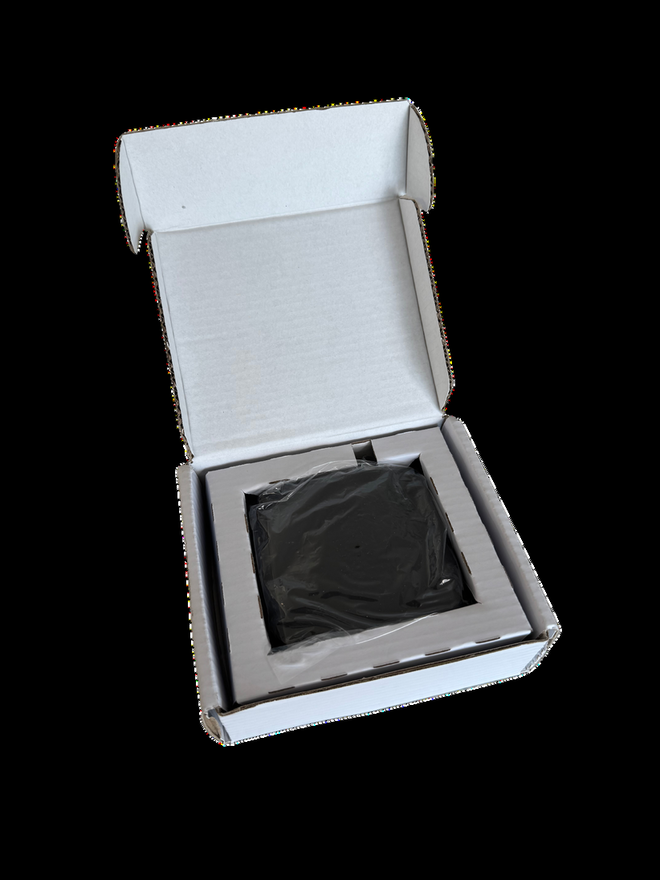
Something missing? Contact support before you start. Keep the packaging in case you need to return or exchange the product.
Step 1: Before you start
Check these things before you open the spa. Most installation problems start here.
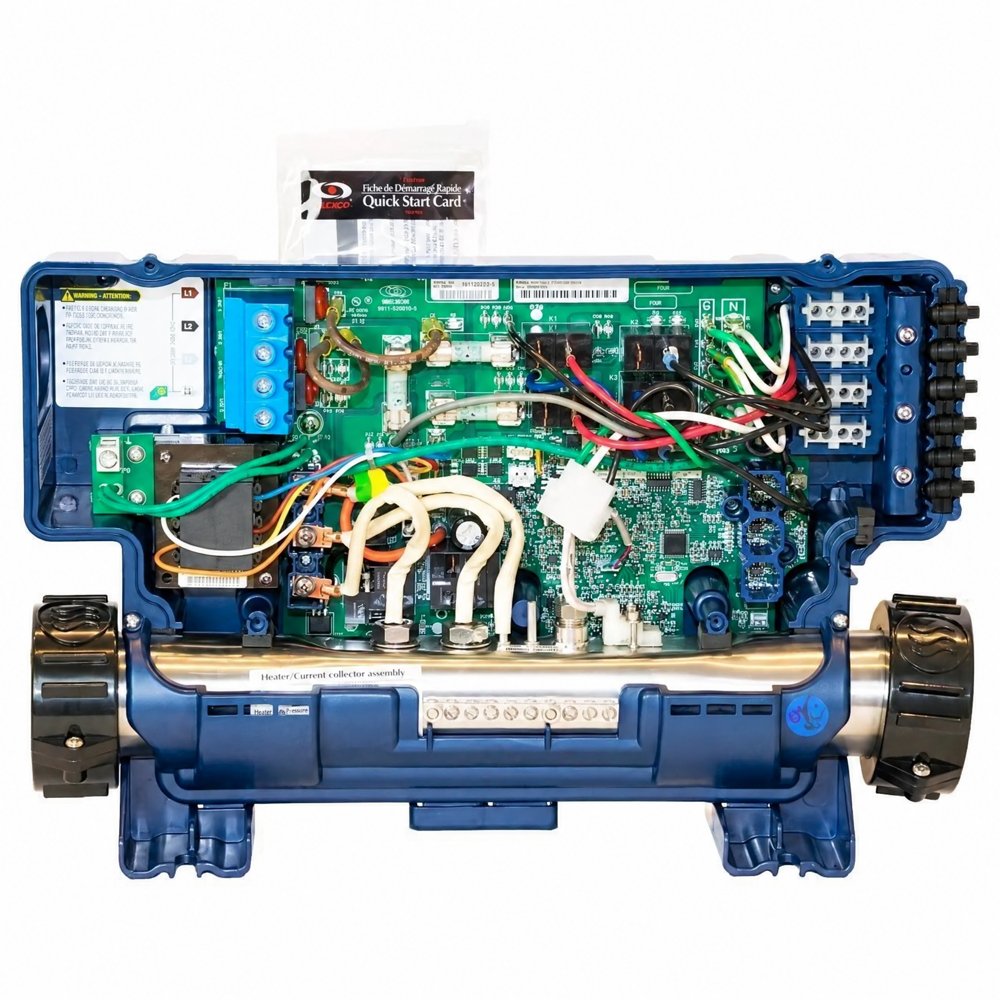
- Your control box. Find the brand and model of your spa's control box and compare it with the pictures below. Spapilot works with Balboa BP series and Gecko IN.YE series.
- Wi-Fi at the spa. Stand next to the spa with your phone. You need at least 2 to 3 bars on your home Wi-Fi.
- 2.4 GHz Wi-Fi. Spapilot only works on 2.4 GHz, not 5 GHz. If your router shows two networks, use the 2.4 GHz one.
- Your Wi-Fi name and password. You need them in step 11.
- The Spapilot app. Download it from the App Store or Google Play.
- Tools. To remove the spa's side panel and the screws on the control box cover.

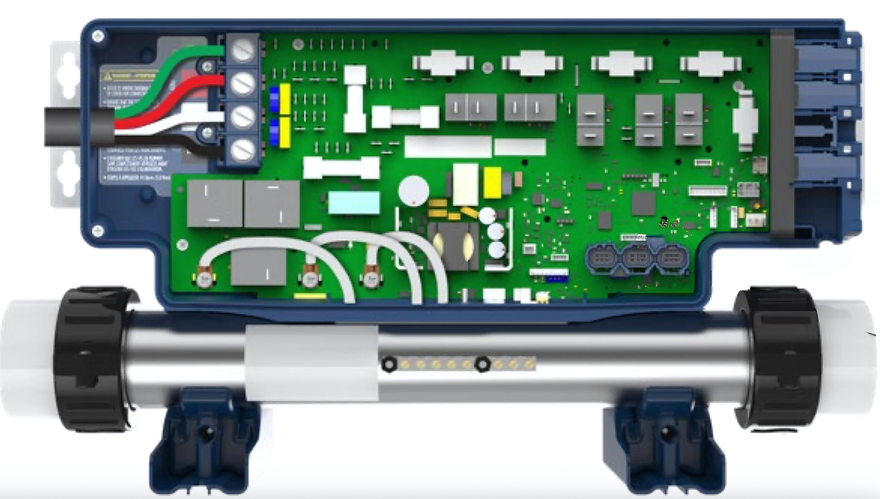
The spa's own Eco mode works against Spapilot. Turn it off before you start. If your spa has a Gecko in.touch Wi-Fi module, do it in the Gecko app now, before you unplug the module in step 4. See the Eco mode guide.
Move the router closer to the spa, or add a Wi-Fi extender or mesh node indoors, near the wall facing the spa. For technical users: the signal at the spa should be -75 dBm or stronger.
Steps 2 to 7: Install the box
2Switch off the power
Switch off all power to the spa at its main switch or circuit breaker. Keep it off until step 7.
Never connect or disconnect the Spapilot cable with the power on. This applies to all spa models.
3Open the control box
- Remove the spa's side panel so you can reach the control box.
- Remove the screws on the control box's front cover, usually 4.
- Lift off the front cover.
4Unplug the spa's own Wi-Fi module
Does your spa have a Wi-Fi module from the manufacturer, for example Gecko in.touch 2, in.touch 3, Balboa bwa or ControlMySpa? Unplug it from the circuit board. Spapilot uses the same port. No module? Go to step 5.
Switching the module off, or removing it from its app, is not enough. It must be physically unplugged. Spapilot and the old module cannot be connected at the same time.
5Connect the Spapilot cable
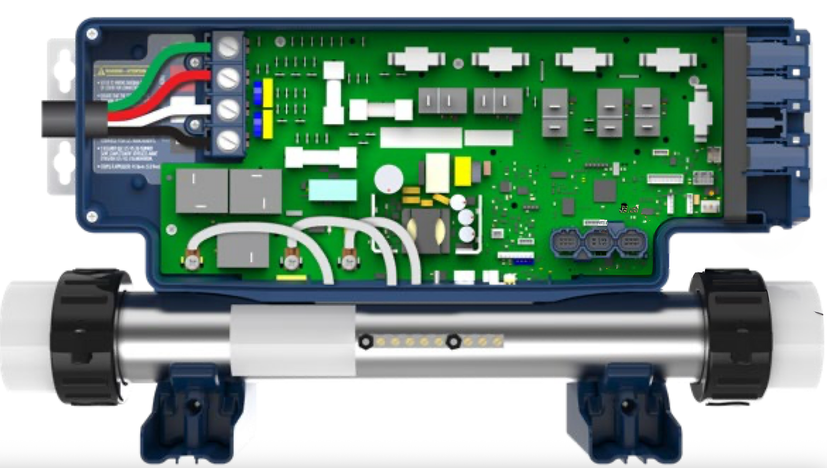
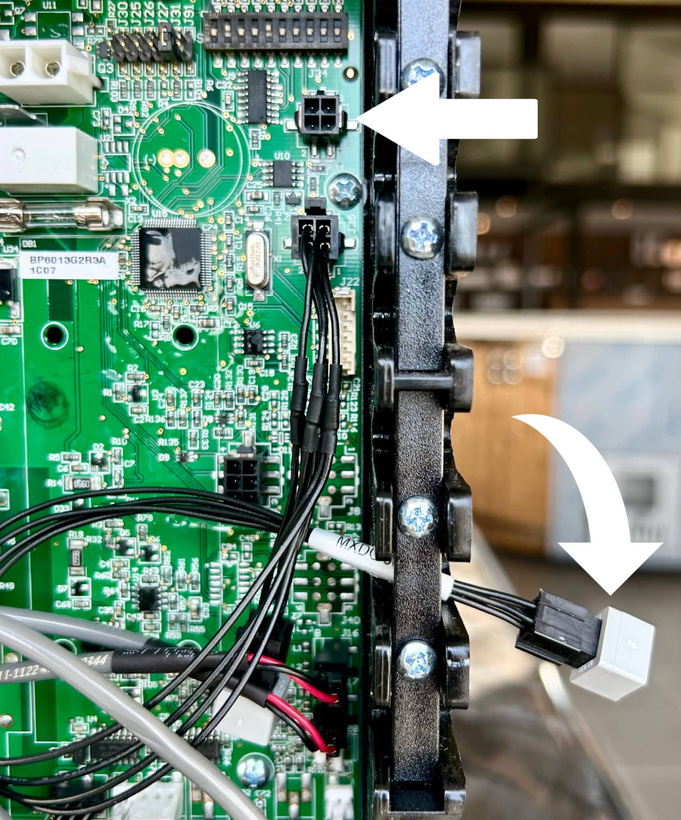
Find the port for your control box in the picture for your model. Push the connector straight in.
Balboa BP series
Gecko IN.YE series
Align the cable connector carefully. Push it in straight, do not tilt. Inserting the connector at an angle may bend or break the pins.
6Mount the box inside the panel
Foil and insulation block Wi-Fi. Spapilot must sit directly against the bare panel.
- Choose a spot on the inside of the panel, as high as possible, on the side of the spa that faces your router.
- Cut out a piece of the insulation, including the foil, about the size of the Spapilot box.
- Place Spapilot against the bare panel where you removed the insulation.
- Put the insulation back around and over the box. Never put insulation between the box and the panel.
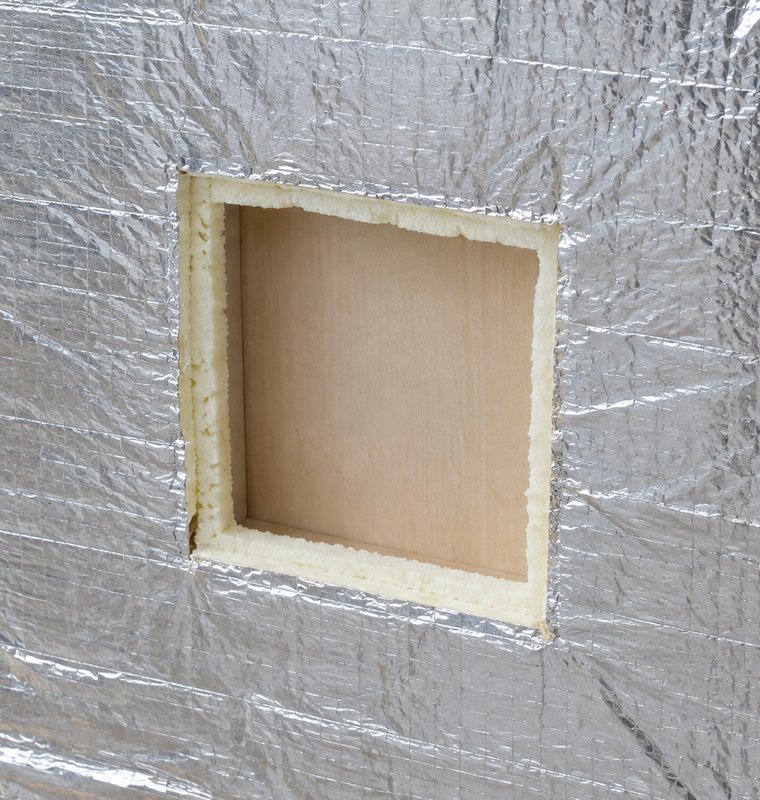
Cable too short to reach a good spot? An extension cable is available for purchase. Avoid large metal objects between the spa and the router.
7Close up and switch on
- Refit the control box cover and the spa's side panel.
- Switch the power to the spa back on.
Steps 8 to 12: Set up in the app
Follow steps 8 to 11 in this order. Do not connect Spapilot to your home Wi-Fi before step 11. Doing so can make the setup network disappear, and you may need to contact support.
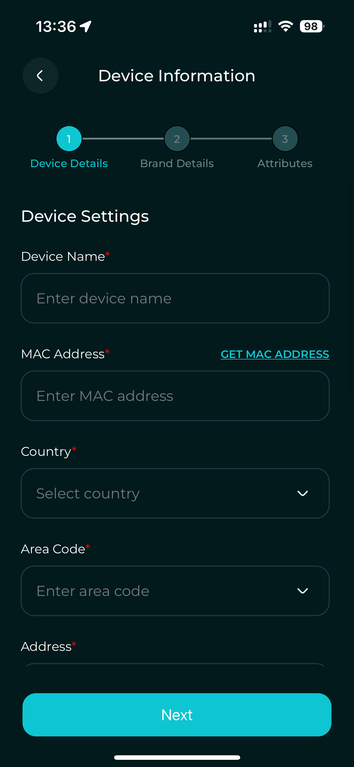
8Add Spapilot in the app
- Open the Spapilot app and create an account. Then log in.
- Tap Add new device.
- Enter a name for your spa.
- Go to step 9. You do not need to tap GET MAC ADDRESS yet.
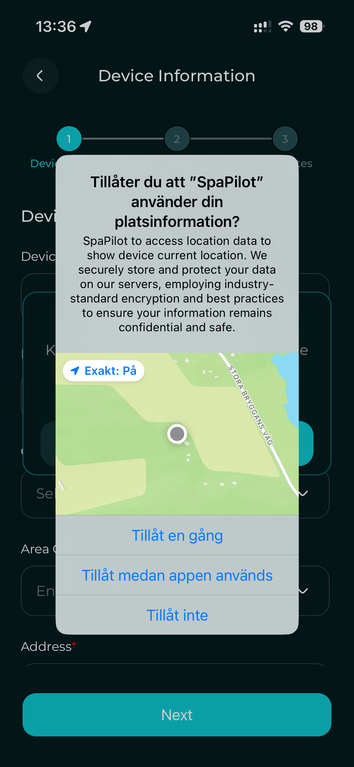
- If the app asks for access to your location, allow it. The app needs it to find Spapilot.
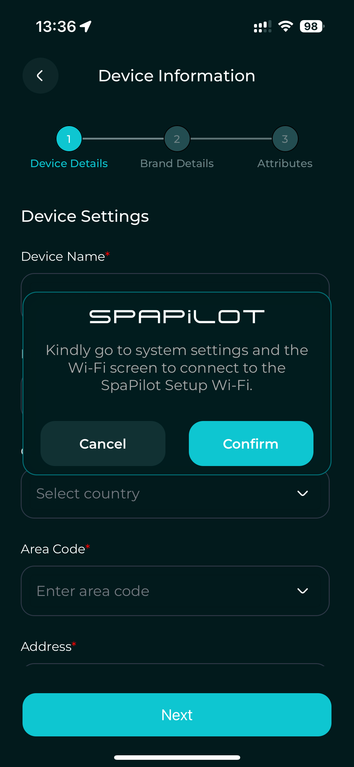
9Join SPAPILOT SETUP WI-FI
- Open your phone's Wi-Fi settings.
- Choose SPAPILOT SETUP WI-FI. No password is needed.
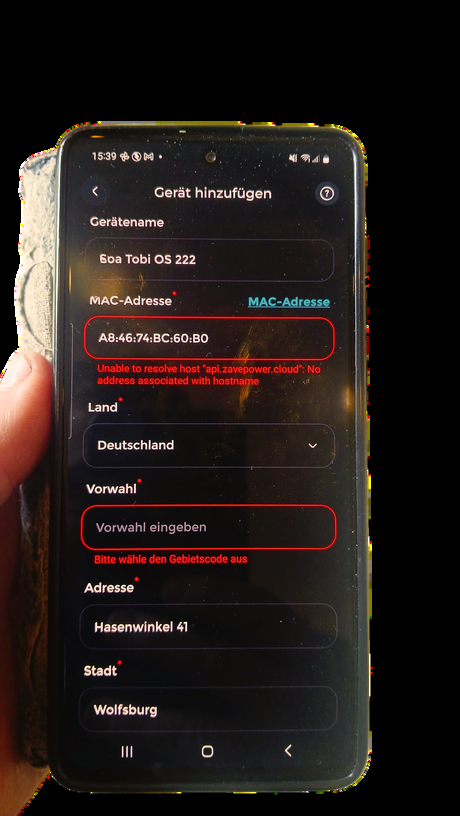
- Your phone may say the network has no internet, for example "Unable to resolve host api.zavepower.cloud". This is expected. Choose to stay on the Wi-Fi, not to switch to mobile data.
- Go back to the Spapilot app. The MAC address is filled in automatically. If it is not, tap GET MAC ADDRESS.
If you see a Wi-Fi network named SPAPILOT RESET HOTSPOT, this is not used for the initial installation.
10Enter your spa details
The app uses these details to calculate energy use and cost. Not sure about a value? Ask your reseller or the spa manufacturer.
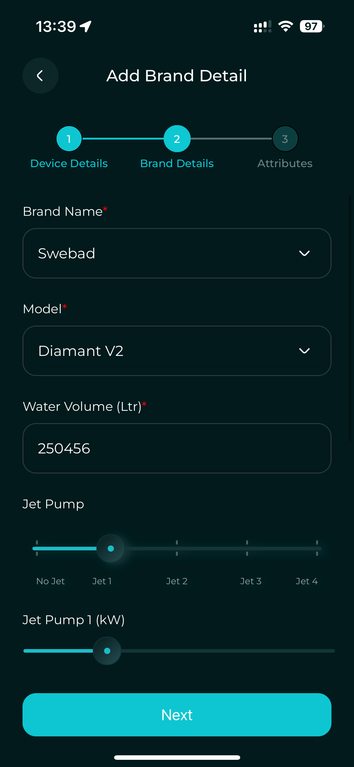
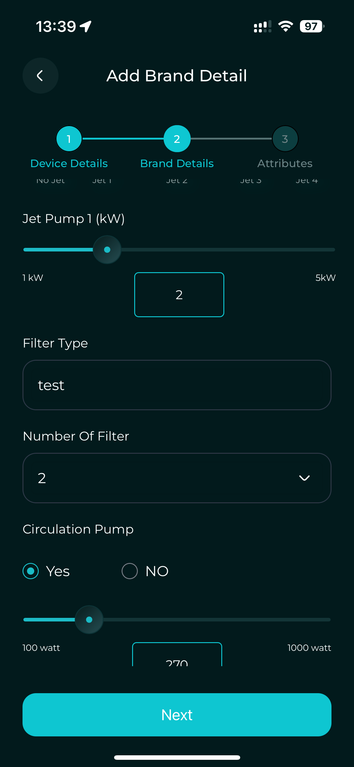
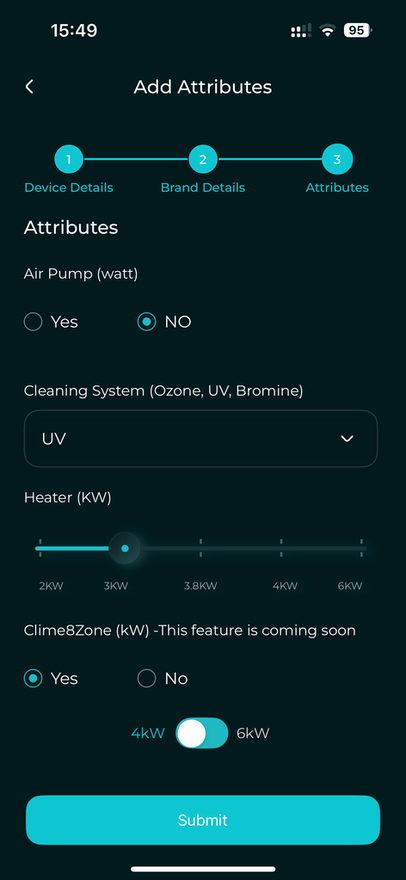
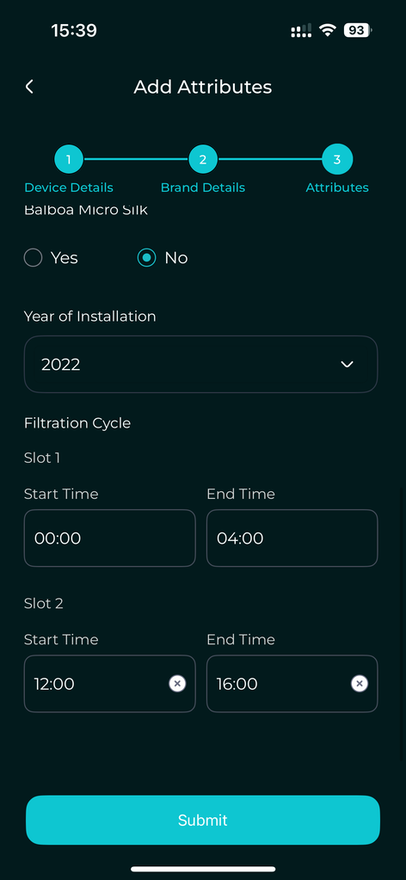
Tap Submit to register your spa.
11Connect Spapilot to your home Wi-Fi
Follow the app to connect Spapilot to your home Wi-Fi. Choose your 2.4 GHz network and enter its password.
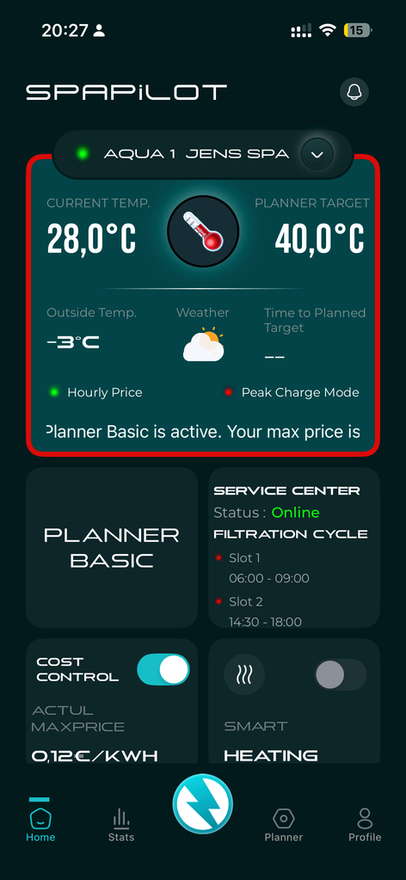
12Done
Your home screen appears. Spapilot is installed.
Change Wi-Fi or router
New router, new Wi-Fi name or new password? Choose the option that fits.
Option A: keep the same name and password (easiest)
Give your new Wi-Fi exactly the same network name and password as the old one. Spapilot then connects to it by itself. If it does not reconnect, restart the spa: switch off the power, wait 10 seconds, and switch it on again.
Option B: new name or password
Newer firmware: if your phone shows a network named Spapilot (…), for example Spapilot (Gecko), you can change the Wi-Fi yourself. See the Wi-Fi guide.
With older firmware, Spapilot cannot switch to a new network by itself. Our support resets it for you. To do that, Spapilot must be online through your phone's hotspot.
- On your phone, set up a mobile hotspot with exactly this name and password:
NameSpapilot Reset HotspotPasswordZavepwr21#&
- iPhone: the hotspot uses the phone's name. Go to Settings, General, About, Name, and change it to Spapilot Reset Hotspot. Then go to Settings, Personal Hotspot, turn on Allow Others to Join, and set the password above.
Android: set the hotspot name and password in your phone's hotspot settings. - Turn on the hotspot and stand next to the spa. Spapilot connects to your phone.
- Contact support at support@zavepower.com and tell us that Spapilot is on the hotspot. We reset it for you.
- When support confirms the reset, turn off the hotspot and set up Spapilot again from step 8.
Troubleshooting
- The most common cause is a weak Wi-Fi signal at the spa. You need at least 2 to 3 bars (-75 dBm or stronger).
- Improve the signal, see the tip in step 1, and check that the box sits against the bare panel (step 6).
- Check that your phone is still on SPAPILOT SETUP WI-FI, then try again.
- After several failed attempts, the setup network switches off. This is a security feature.
- Connecting Spapilot to your home Wi-Fi before step 11 can also make it disappear.
- Contact support. We can reset Spapilot so you can try again.
- Check that the spa has power.
- Switch off the power to the spa and check that the Spapilot cable is pushed all the way into the port.
- Switch the power back on.
- Check that your Wi-Fi works for other devices.
- Check that you use the 2.4 GHz network, not 5 GHz.
- Check the signal at the spa: at least 2 to 3 bars.
- After a power cut, Spapilot reconnects by itself when the Wi-Fi is back. If it does not, switch off the power to the spa, wait 10 seconds, and switch it on again.
- Make sure the Spapilot box is powered on and connected to Wi-Fi.
- Check that you are logged into the correct account in the app.
- Restart both the app and the Spapilot device. Turn off power to the spa and wait 10 seconds before turning the power on again.
- Check the Wi-Fi connection.
- Make sure your app is updated to the latest version.
- Restart the Spapilot app and try again.
- Make sure Spapilot is connected to both power and Wi-Fi during the update.
- Restart the device and try again.
- If the problem continues, contact support.
- Make sure the spa connects to the 2.4 GHz Wi-Fi band. The device does not support 5 GHz.
- Use WPA2-PSK security mode, avoid WPA3.
- For best stability, set the Wi-Fi channel to 1, 6, or 11.
- Assign the spa a fixed IP address (DHCP reservation) in your router. This prevents disconnections when the router changes IP leases.
Visit our support page for more guides and video tutorials at www.zavepower.com/support. You can also contact us directly at support@zavepower.com.
FAQ
Technical Specifications
Warranty and Support
Warranty terms
Spapilot comes with a standard 24-month warranty. If you purchased the product through an authorized reseller, a 5-year warranty applies. The warranty covers manufacturing defects and operational issues under normal use. To make a warranty claim, contact our support team with your proof of purchase and the product's serial number.
Effect on your spa's manufacturer warranty
Spapilot connects through the spa's official port and existing interfaces. It does not change the spa's software or hardware, and does not affect your spa manufacturer's warranty.
Software warranty
The Spapilot software, including the mobile app and device firmware, is provided "as is" and is covered by a limited warranty. Zavepower guarantees that the software will function as described in the official documentation at the time of delivery. Zavepower is not responsible for issues caused by third-party software, operating system updates, or user modifications. Regular updates are provided to improve performance and security, but uninterrupted or error-free operation cannot be guaranteed.
Environment and recycling
When your product reaches end of life, dispose of it at your nearest electronics recycling facility. Always follow local recycling guidelines.
Safety certificates and approvals
Spapilot is CE marked and RoHS compliant, meeting European safety and environmental standards. For more information about certifications, visit our website or contact our support team.
Contact Directory
Website: www.zavepower.com
Email: support@zavepower.com
Spapilot Gen 1 is in its beta phase. If something does not work as described in this manual, contact support. We welcome your feedback.
Please note: Zavepower has no commercial partnership with Balboa Water Group or Gecko. Any mention of Balboa or Gecko products is solely to clarify technical compatibility.