
Spapilot Wi-Fi guide
How to move Spapilot to a new router or a new Wi-Fi password, and what to do when Spapilot loses its connection.

Before you change Wi-Fi
New router, new internet provider or new Wi-Fi password? Spapilot needs the new network details to stay online.
Update Spapilot at the same time as you change your Wi-Fi. If you already know the new network name and password, you can do it before the change.
Choose the way that fits
Keep the same name and password
Give your new Wi-Fi exactly the same network name and password as the old one. Spapilot connects to it by itself.
If it does not reconnect, restart the spa: switch off the power, wait 10 seconds, and switch it on again.
You see a network named Spapilot (…)
Spapilot with newer firmware has its own network, for example Spapilot (Gecko). Through it you change the Wi-Fi yourself.
Go to chapter 02.
You only see SPAPILOT SETUP WI-FI, or no Spapilot network
Spapilot with older firmware cannot switch network by itself. Our support resets it for you through your phone's hotspot.
Go to chapter 04.
Not sure which way fits? Open the Wi-Fi settings on your phone next to the spa and look for a network that starts with Spapilot. If nothing shows up, use the troubleshooting map.
Change Wi-Fi, step by step
For Spapilot with newer firmware, way B. You need your phone and the name and password of your new Wi-Fi. Stand next to the spa.
1Join the Spapilot network
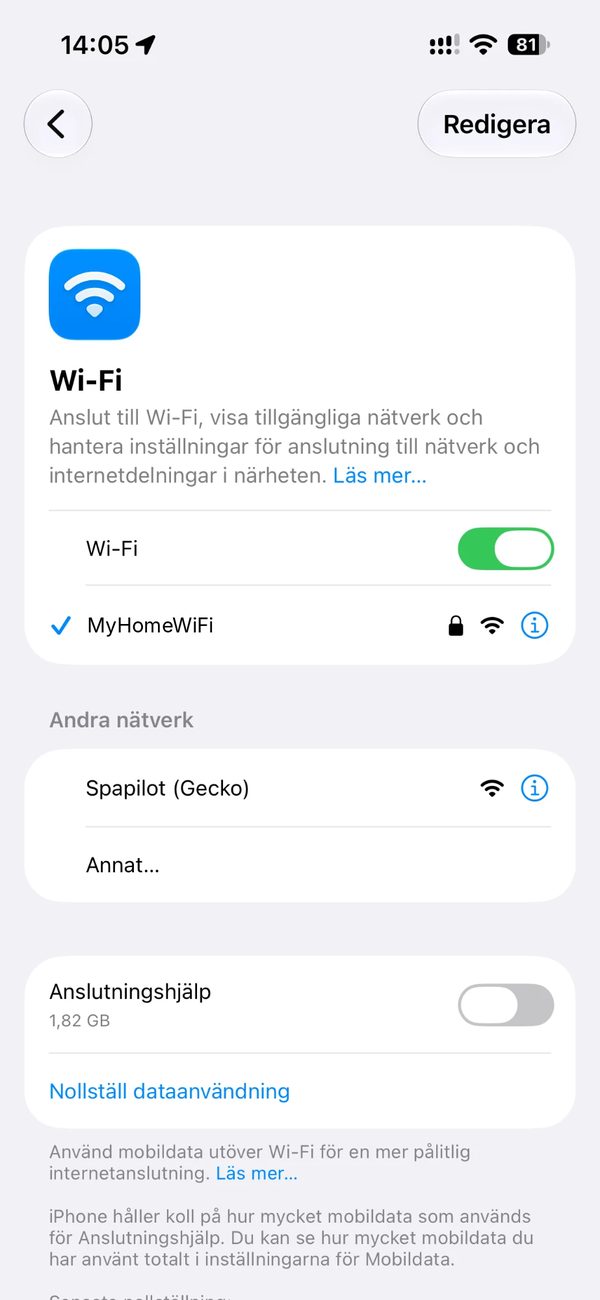
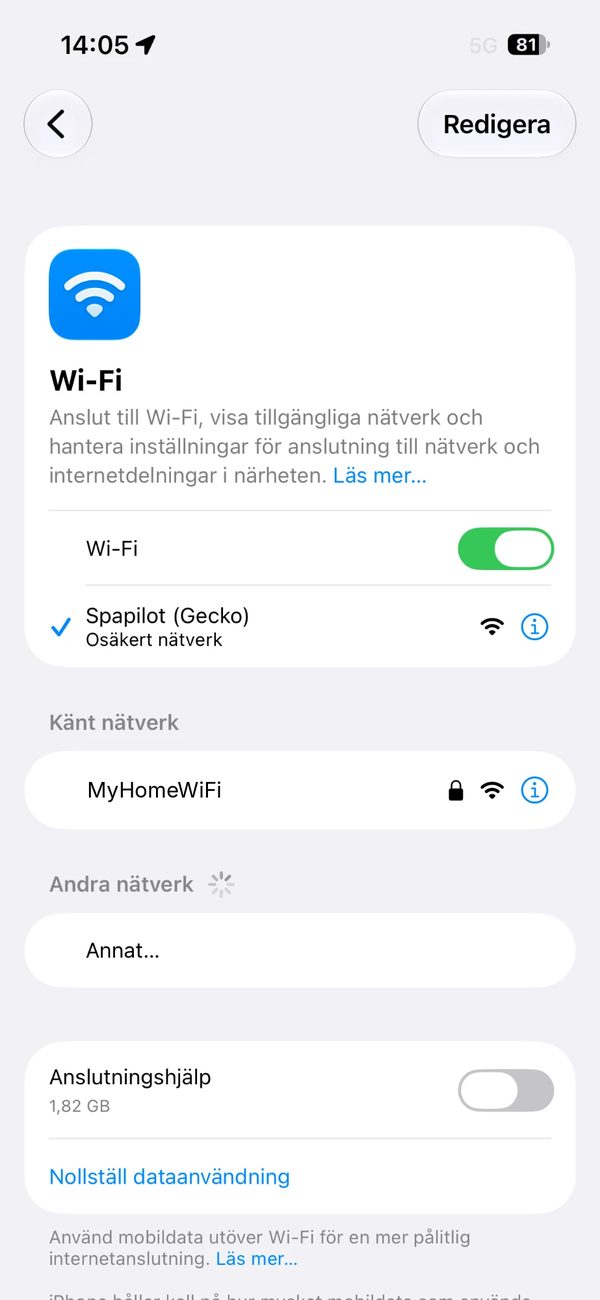
- Open the Wi-Fi settings on your phone.
- Choose the network that starts with Spapilot, for example Spapilot (Gecko). No password is needed.
- Your phone may call the network insecure. This is expected. Stay connected.
2Open the setup page
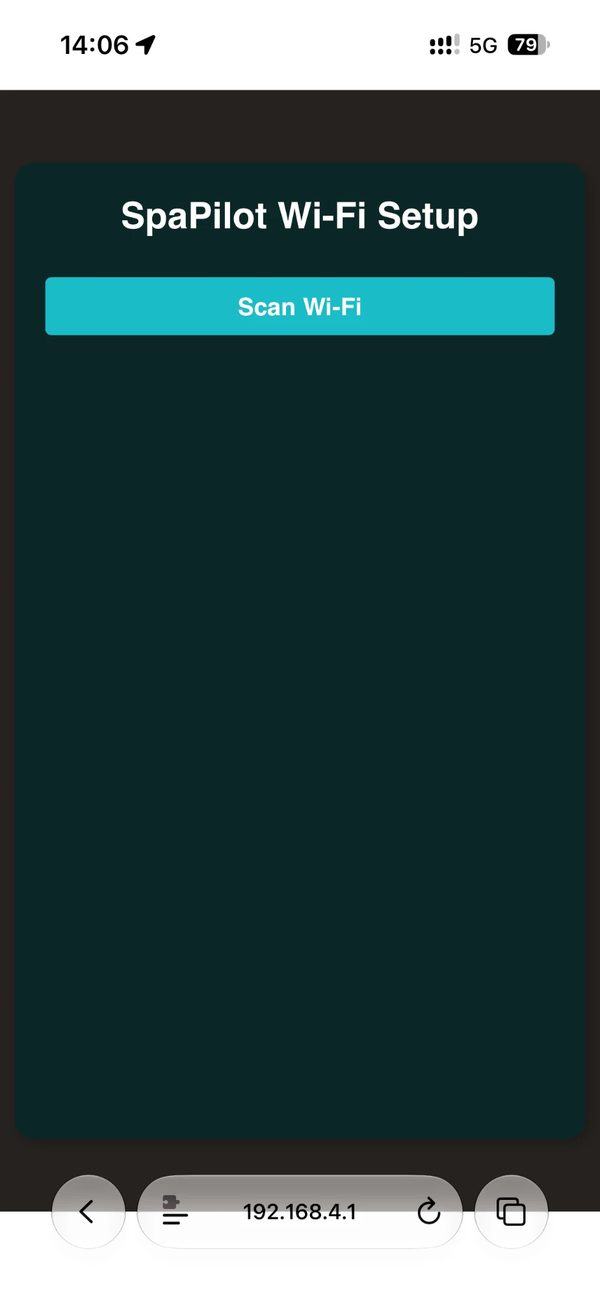
- Open the web browser on your phone, for example Safari or Chrome.
- Type 192.168.4.1 in the address field and open the page.
- The page SpaPilot Wi-Fi Setup opens.
3Choose your new Wi-Fi
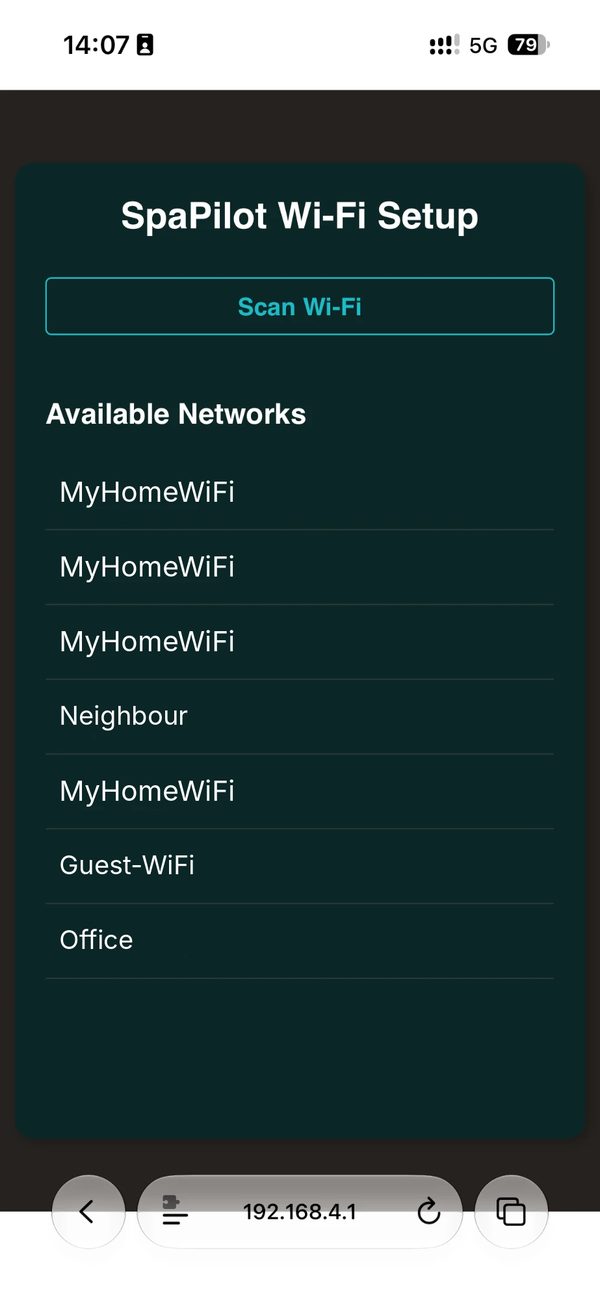
- Tap Scan Wi-Fi. A list of available networks appears.
- Tap the name of your new Wi-Fi. Choose the 2.4 GHz network. Your network can be listed more than once.
4Enter the password
- Type the password of your new Wi-Fi. Check upper and lower case.
- Tap Submit.
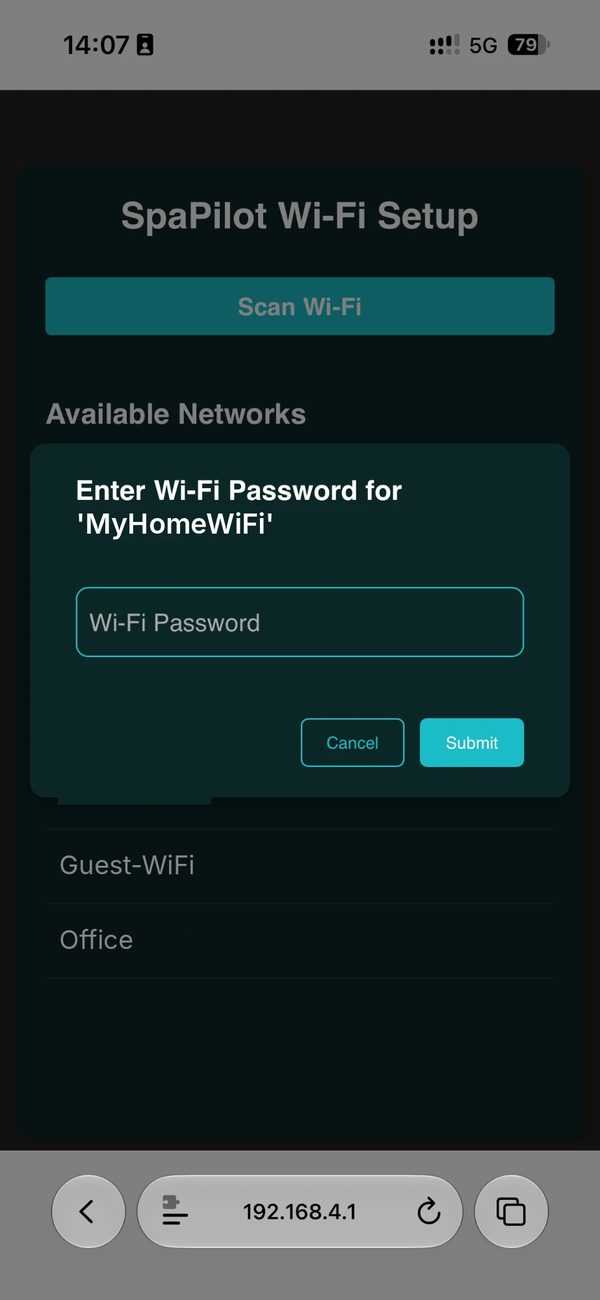
5Check in the app
- Connect your phone to your home Wi-Fi again.
- Open the Spapilot app.
Troubleshooting map
Start at question 1. Follow your answer to the next step.
-
1
Can you see a network that starts with Spapilot?
Open the Wi-Fi settings on your phone next to the spa. Look for SPAPILOT SETUP WI-FI or Spapilot (…), for example Spapilot (Gecko).
-
2
Does the spa have power?
Check that the spa's display is lit.
YESGo on to question 3. → 3 NOContact an authorised electrician. DON'T KNOWContact an authorised electrician. -
3
Restart the spa. Can you see the Spapilot network now?
Switch off the power to the spa, wait 10 seconds, and switch it on again. Wait a minute and check the Wi-Fi list on your phone again.
-
4
Has Spapilot been set up and online before?
YESUse Reset Hotspot, then contact support. → 6 NOCreate a support ticket with the subject Reset Wi-Fi. Email support@zavepower.com. -
5
Which Spapilot network do you see?
SPAPILOT (…)Change the Wi-Fi yourself, see chapter 02. Spa still not online in the app? Go on to question 6. → 6 SETUP WI-FIFirst installation: follow steps 8 to 11 in the installation manual. Changing to a new Wi-Fi: go on to question 6. → 6 -
6
Set up Reset Hotspot and contact support
Follow chapter 04. Spapilot goes online through your phone, and support can reach it.
NEXTCreate a support ticket with the subject Reset Wi-Fi. Email support@zavepower.com.
Reset Hotspot
Spapilot has no reset button, so you do not need to open the spa's panels. Instead Spapilot connects to a hotspot on your phone and goes online through your mobile data. Our support can then reach Spapilot and reset it for you.
Use exactly this name and password
iPhone
- The hotspot uses the phone's name. Go to Settings, General, About, Name, and change it to Spapilot Reset Hotspot.
- Go to Settings, Personal Hotspot. Turn off Allow Others to Join, wait a few seconds, and turn it on again.
- Tap Wi-Fi Password and enter Zavepwr21#&.
Android
- Open Settings, Network & Internet (sometimes Connections), Hotspot & tethering, Wi-Fi hotspot.
- Tap Hotspot name (sometimes SSID) and enter Spapilot Reset Hotspot.
- Tap Hotspot password and enter Zavepwr21#&.
- Turn the hotspot off, wait a few seconds, and turn it on again.
Then
- Keep the hotspot on and stand next to the spa. Spapilot connects to your phone by itself.
- Create a support ticket with the subject Reset Wi-Fi at support@zavepower.com. Tell us that Spapilot is on the hotspot.
- When support confirms the reset, turn off the hotspot. Connect Spapilot to your Wi-Fi again, from step 8 in the installation manual.
- The hotspot must be visible, not hidden.
- The name and password must match exactly, including upper and lower case.
- Problems? Restart your phone and try again.
- Afterwards you can change your phone's name back.
SPAPILOT RESET HOTSPOT is only for support. It is not used when you install Spapilot for the first time.
Wi-Fi requirements
- Spapilot uses the 2.4 GHz band. It does not support 5 GHz.
- Use WPA2-PSK security, avoid WPA3.
- You need at least 2 to 3 bars at the spa (-75 dBm or stronger).
- For best stability, set the Wi-Fi channel to 1, 6 or 11.
- Give Spapilot a fixed IP address (DHCP reservation) in your router. This prevents disconnections when the router hands out new addresses.
- After a power cut, Spapilot reconnects by itself when the Wi-Fi is back.
Still having problems? Email support@zavepower.com or visit zavepower.com/support.