
Spapilot
in 12 steps.
The installation on one page, plus your first settings. The full instructions are in the Installation Manual.
Before you start
- In the box: the Spapilot unit, with the cable already attached.
- Not a Balboa BP or Gecko IN.YE control box? Do not connect the device. Contact support first.
If your spa has a Gecko in.touch Wi-Fi module, turn off Eco mode in the Gecko app before you unplug the module. See the Eco mode guide.
Install the box: steps 2 to 7
If you insert the connector at even a slight angle, the pins bend and the connection is permanently damaged. Bent pins cannot be repaired, the connector must be replaced. If it does not seat smoothly, pull it out and realign it.
Set up in the app: steps 8 to 12
Do not connect Spapilot to your home Wi-Fi before step 11. Doing so can make the setup network disappear, and you may need to contact support.
GET MAC ADDRESS keeps spinning, or the setup network is gone? See Troubleshooting in the Installation Manual.
First settings
Choose the pricing mode that matches your electricity contract, configure your settings, and schedule your first bath.
1. Choose your pricing mode
2. Hourly Price only: choose a planner
All modes also have Peak Charge mode. When it is on, Spapilot avoids heating during power-peak hours.
3. Schedule when your spa should be ready
Set the time and the days you want to bathe. Spapilot works backwards from that time to heat at the lowest cost.
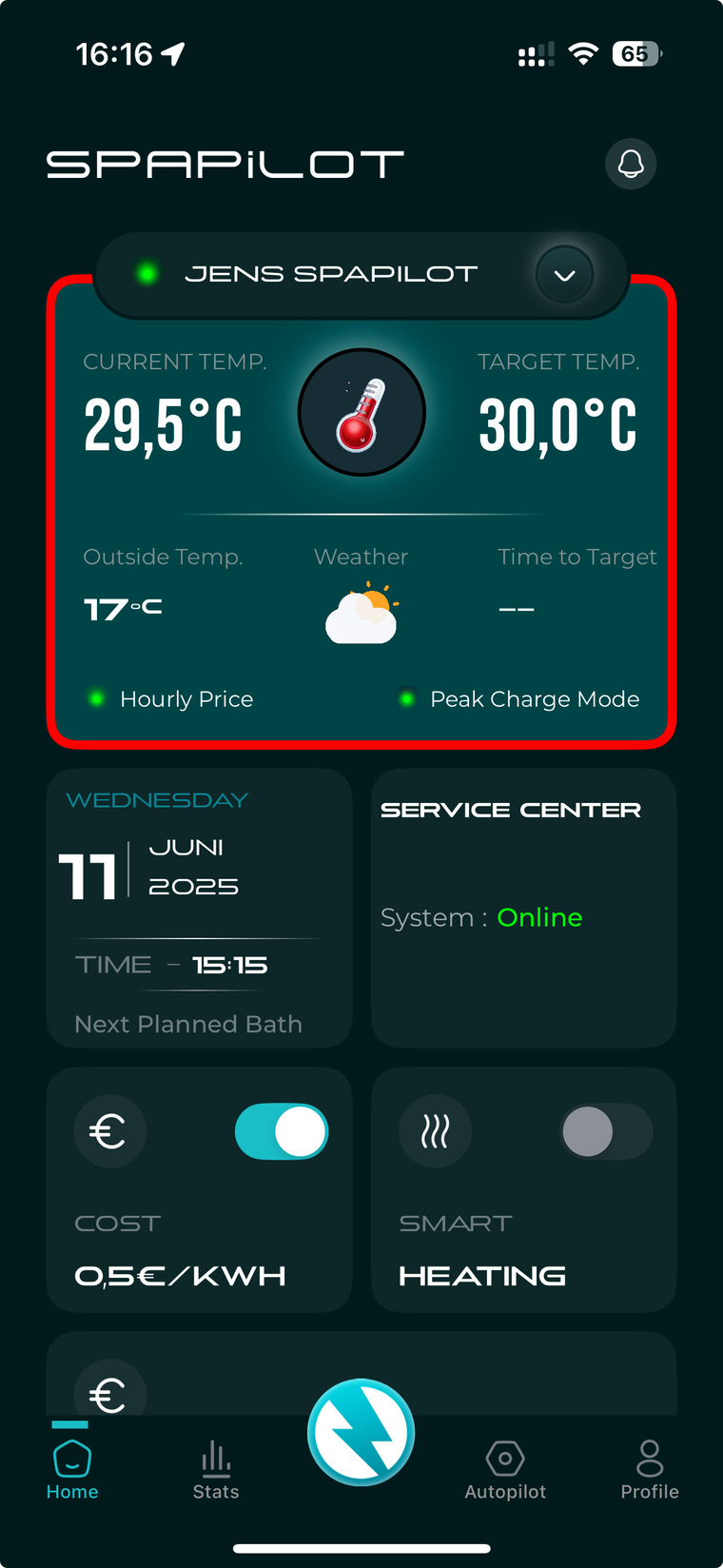
Change prices and target temperature later in Cost Control. The home screen has shortcuts for Max price and Target temp. Check that your phone shows the correct time zone.
More about every setting in the Spapilot user guide.
Lightframe in the app
The Lightframe is the colour ring in the Spapilot app. Its colour shows what Spapilot is doing. Spapilot itself has no indicator light.
Good to know
Need help?
Vikbolandet, Sweden