Installation
Check the box
The box contains one item:
- Spapilot unit — the cable is already attached to the device
Connect the cable
Connect Spapilot to your spa's control box using the supplied cable. The connection point depends on your control system model — refer to the wiring diagram in the Installation Manual for the exact port location.
The connector must go in perfectly straight. If you insert it at even a slight angle, the pins will bend and the connection will be permanently damaged. There is no repair for bent pins — the connector will need to be replaced.
Hold the cable straight, align it carefully with the port, and press in firmly and evenly. Do not force it. If it does not seat smoothly, pull out and realign before trying again.
Download the Spapilot app
Install the Spapilot app on your phone. Available for both iOS and Android. You will need to create an account — use your email address.
Connecting to Spapilot Setup WiFi happens in Step 4 — not here. If you connect to it now, the app will not work correctly and setup will fail.
Complete this step on your regular home Wi-Fi or mobile data.
Connect to Spapilot Setup WiFi
Go to your phone's Wi-Fi settings and connect to the Spapilot setup network. No password required. Then open the app and follow the on-screen instructions to connect Spapilot to your home Wi-Fi.
App Setup
Set up Cost Control & Planner
Choose the pricing mode that matches your electricity contract, configure your settings, then schedule your first bath. Planner Basic is done after settings — all other paths continue to the Planner.
You're set. Here's what to know.
Spapilot now manages your spa automatically. These are the things you'll encounter in day-to-day use.
Lightframe LED
Filtration is never governed by electricity price. It always runs at the scheduled time, regardless of how expensive the electricity is that hour. This is intentional — consistent filtration is required to maintain water quality and cannot be skipped to save cost.
For this reason, we recommend setting filtration times at night, when electricity prices are typically at their lowest. To change a slot, tap it in the Filtration tab and adjust the start time and duration. Filtration does not heat the water — it only circulates it through the filter.
Quick Reference
App navigation
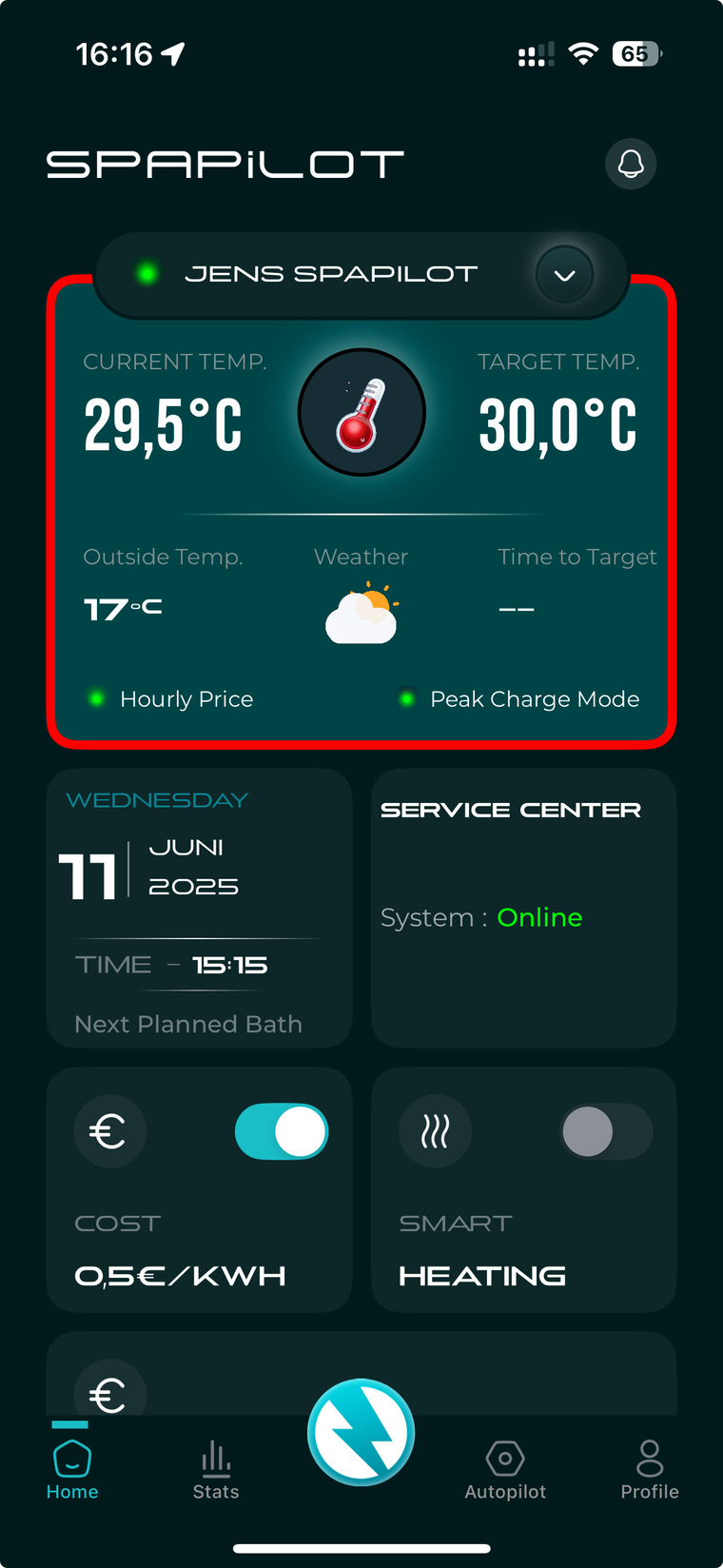
Five tabs at the bottom of the screen. Here's what you'll find in each.
Re-connecting to Wi-Fi
If Spapilot loses its Wi-Fi connection or you change your home network, use the Spapilot Reset Hotspot to reconnect. This is a separate process from the initial setup — follow the steps below carefully.
- Option A — Rename your phone: Go to Settings → General → About → Name and change it to something other than "Spapilot Reset Hotspot".
- Option B — Change the hotspot name in the app: If the app allows renaming the device hotspot, set it to a unique name that differs from your phone's name.
Do this before you hold the reset button. The connection will not work if the names conflict.
Wi-Fi requirements
Signal strength: Spapilot requires a stable signal of −75 dBm or stronger for reliable operation. A weaker signal may cause intermittent disconnections. If the connection keeps dropping, move your router closer, add a Wi-Fi extender, or relocate the device to improve signal quality.
During a disconnection, Spapilot loses access to live electricity prices and cannot execute the optimization algorithm. It will not heat according to your plan until the connection is restored. The longer the outage, the more bath sessions it will miss.
Router port requirements: Spapilot communicates outbound on two ports. If your router has a firewall or port-blocking policy, make sure these are open:
Both are outbound only. If your device connects to Wi-Fi but cannot reach the Spapilot platform, a blocked port is the most likely cause. Check your router's firewall settings or contact your ISP.
Good to think about
Things that sometimes cause confusion — not errors, just behavior worth knowing in advance.
Need help?
The Service Center is available under Profile in the app. It contains diagnostics, device information, and direct support contact.