
Zavepower Zavepower
Spapilot·Snabbguide
Ladda ner PDF
QUICK START GUIDE SPAPILOT

Spapilot
in 12 steps.

The installation on one page, plus your first settings. The full instructions are in the Installation Manual.

Generation
Gen 1 hardware
Balboa
BP-Series
Gecko
IN.YE-Series
Network
Wi-Fi 2.4 GHz
Version
v1.1 · 2026-10
Spapilot
Quick start
01

Before you start

Check what you need
A Balboa BP or Gecko IN.YE control box. At least 2 to 3 Wi-Fi bars at the spa, on a 2.4 GHz network (not 5 GHz). Your Wi-Fi name and password. The Spapilot app from the App Store or Google Play.
  • In the box: the Spapilot unit, with the cable already attached.
  • Not a Balboa BP or Gecko IN.YE control box? Do not connect the device. Contact support first.
IMPORTANT
GECKO SPA: TURN OFF ECO MODE FIRST

If your spa has a Gecko in.touch Wi-Fi module, turn off Eco mode in the Gecko app before you unplug the module. See the Eco mode guide.

02

Install the box: steps 2 to 7

Switch off the power
Switch off all power to the spa at its main switch or circuit breaker. This applies to all spa models.
Open the control box
Remove the spa's side panel and the front cover of the control box.
Unplug the spa's own Wi-Fi module
Gecko in.touch 2 or 3, Balboa bwa or ControlMySpa must be physically unplugged. Spapilot uses the same port. No module? Skip this step.
Connect the Spapilot cable
Find the port for your control box in the Installation Manual, step 5. Push the connector in perfectly straight.
Mount the box inside the panel
Cut away the insulation and foil so the box sits directly against the bare panel, as high as possible, facing your router.
Close up and switch on
Refit the covers and switch the power back on. Spapilot has started when SPAPILOT SETUP WI-FI appears in your phone's Wi-Fi list.
CAUTION
PUSH THE CONNECTOR IN STRAIGHT

If you insert the connector at even a slight angle, the pins bend and the connection is permanently damaged. Bent pins cannot be repaired, the connector must be replaced. If it does not seat smoothly, pull it out and realign it.

03

Set up in the app: steps 8 to 12

Add Spapilot in the app
Create an account and log in. Tap Add new device and enter a name. Allow location access if the app asks.
Join SPAPILOT SETUP WI-FI
In your phone's Wi-Fi settings, choose the setup network below. If the phone says there is no internet, stay on the Wi-Fi. Go back to the app: the MAC address is filled in automatically. If it is not, tap GET MAC ADDRESS.
Enter your spa details
Volume, pumps, filters and filtration time. Use the preset filtration value if you are unsure. Tap Submit.
Connect Spapilot to your home Wi-Fi
Follow the app. Choose your 2.4 GHz network and enter its password.
Done
The home screen appears. Continue with your first settings below.
Network
SPAPILOT SETUP WI-FI
Password
None, open network
CAUTION
FOLLOW STEPS 8 TO 11 IN ORDER

Do not connect Spapilot to your home Wi-Fi before step 11. Doing so can make the setup network disappear, and you may need to contact support.

GET MAC ADDRESS keeps spinning, or the setup network is gone? See Troubleshooting in the Installation Manual.

04

First settings

Choose the pricing mode that matches your electricity contract, configure your settings, and schedule your first bath.

1. Choose your pricing mode

RECOMMENDED
Hourly Price
Your electricity price changes every hour. Spapilot uses the hourly prices to find the cheapest hours.
 
Zone-Based
Your contract has fixed cheap and expensive hours, for example a day and night rate.
 
Fixed Price
Flat rate per kWh, for contracts without hourly pricing.

2. Hourly Price only: choose a planner

BASIC
Basic Planner
Fixed schedule. You set the highest price you want to pay per kWh and the target temperature.
DYNAMIC
Dynamic Planner
Self-adjusting. You set the highest price, and Spapilot plans the heating around the hourly prices.

All modes also have Peak Charge mode. When it is on, Spapilot avoids heating during power-peak hours.

3. Schedule when your spa should be ready

Set the time and the days you want to bathe. Spapilot works backwards from that time to heat at the lowest cost.

TIP

Change prices and target temperature later in Cost Control. The home screen has shortcuts for Max price and Target temp. Check that your phone shows the correct time zone.

More about every setting in the Spapilot user guide.

05

Lightframe in the app

The Lightframe is the colour ring in the Spapilot app. Its colour shows what Spapilot is doing. Spapilot itself has no indicator light.
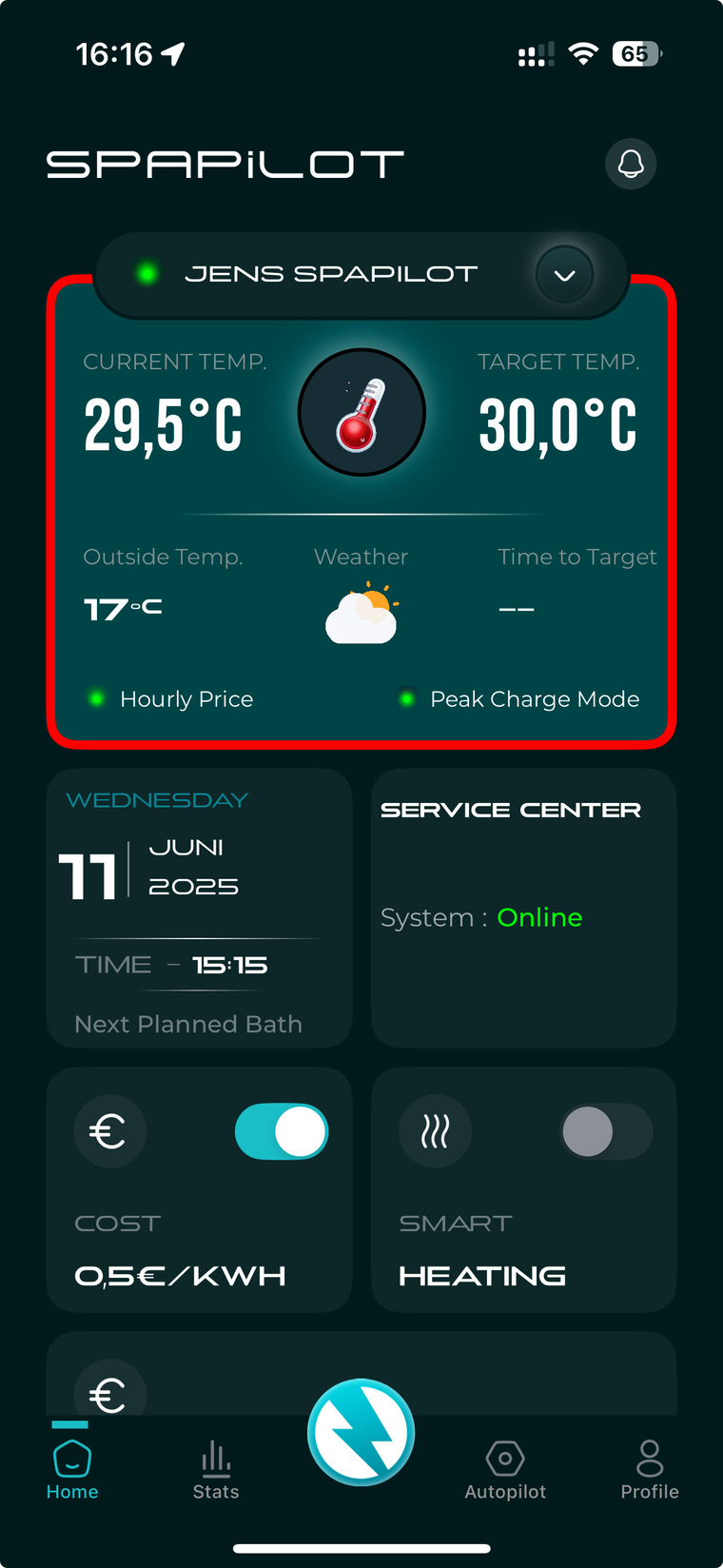
Home screen with the Lightframe around the spa card
The Lightframe around the spa card on the home screen. Here it is red: Spapilot is heating.
Orange, steadyStandby. Waiting for the next time to heat according to the plan.
Red, pulsatingActively heating. Spapilot is working toward your target temperature.
Blue, steadyCooling down. Water temperature is above the target, waiting to reach it.
No colorInactive. No schedule or heating active.
06

Good to know

Setup complete, but the spa isn't heating yet?
Spapilot does not heat right away. It waits until your first scheduled bath approaches, then starts in time. Check Next Planned Bath on the home screen.
Changed a setting but nothing happened yet?
If a heating cycle is running, Spapilot finishes it first. New settings can take up to 30 minutes to apply.
Heating started at an unexpected hour?
Spapilot heats when electricity is cheapest, for example at 2 or 4 in the morning. That is the plan working.
The spa's display shows different values than the Spapilot app?
That is expected and not a fault. Spapilot controls your spa according to the settings you make in the app. The spa's own control system does not have functions that match these settings, so Spapilot adjusts some of the spa's functions to reach them. The spa's display can therefore show values that differ from what the Spapilot app shows.
Filtration ran when electricity was expensive?
Filtration always runs at its scheduled time, whatever the price, to keep the water clean. Schedule it at night, when prices are usually lowest.
New router or new Wi-Fi password?
Give the new Wi-Fi the same name and password as the old one, and Spapilot connects by itself. Otherwise, see Change Wi-Fi or router.
What happens if Wi-Fi drops?
Without Wi-Fi, Spapilot cannot get electricity prices and does not heat according to your plan until the connection is back.
07

Need help?

Company
Zavepower Innovative Technology AB (publ)
Vikbolandet, Sweden