
Get to know
your Spapilot.
The new way of looking at your outdoor spa.
Discover a new way to enjoy your spa
At Zavepower, we want to challenge the traditional way of thinking about spa usage. Instead of running your spa 24/7, we want to show how smart technology can give you complete freedom while saving both energy and money.
Spapilot is not just a remote control for your spa. It is a whole new way of looking at how you use it. With scheduling, smart heating, and control directly from your phone, your spa adapts to you, not the other way around.
We understand it might feel a little unusual at first, to leave behind the old "always on" mindset. But once you experience the simplicity and control of Spapilot, you will wonder how you ever managed without it. It is all about daring to think differently, and we are convinced you will love the result. Change is never easy.
In this guide, we explain the thinking behind the features and help you get the most out of your Spapilot. Welcome to the future of spa living.
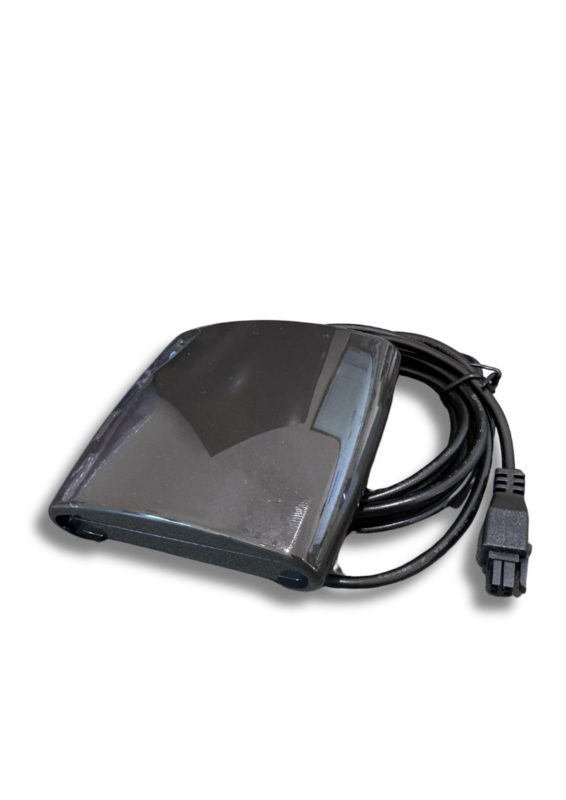
Please read this guide fully to understand Spapilot and all of its functions.
Spapilot's smart features
Every Spapilot feature is designed to make your spa experience easier, smarter, and more sustainable, so you can focus on what matters most: enjoying your spa.
Cost Control, how it works
With Spapilot's Cost Control, our goal is to make it easy for you to understand and influence your energy costs, while also helping you get more out of your spa.
Our philosophy is that you should have full control, and also get support to use your spa regularly, so you truly enjoy all of its benefits.
Our thinking behind Cost Control
Traditionally, spas have been real energy guzzlers, running around the clock whether they are used or not. With Spapilot, we want to break that pattern through smart scheduling, temperature control, and real-time data, so you only heat your spa when needed, saving both money and the environment.
But we also want to change how you see your spa. It should not just be for spontaneous dips, it should become a natural part of your everyday life.
Many people want to use their spa more often but need a little help getting started. That is why we offer reminders and inspiration directly in the app, so you get the most out of your investment and all the health benefits a spa can provide.
Setup on hourly electricity price
To set up Spapilot on an hourly electricity price, tap Cost Control on the main screen and configure the settings in order.
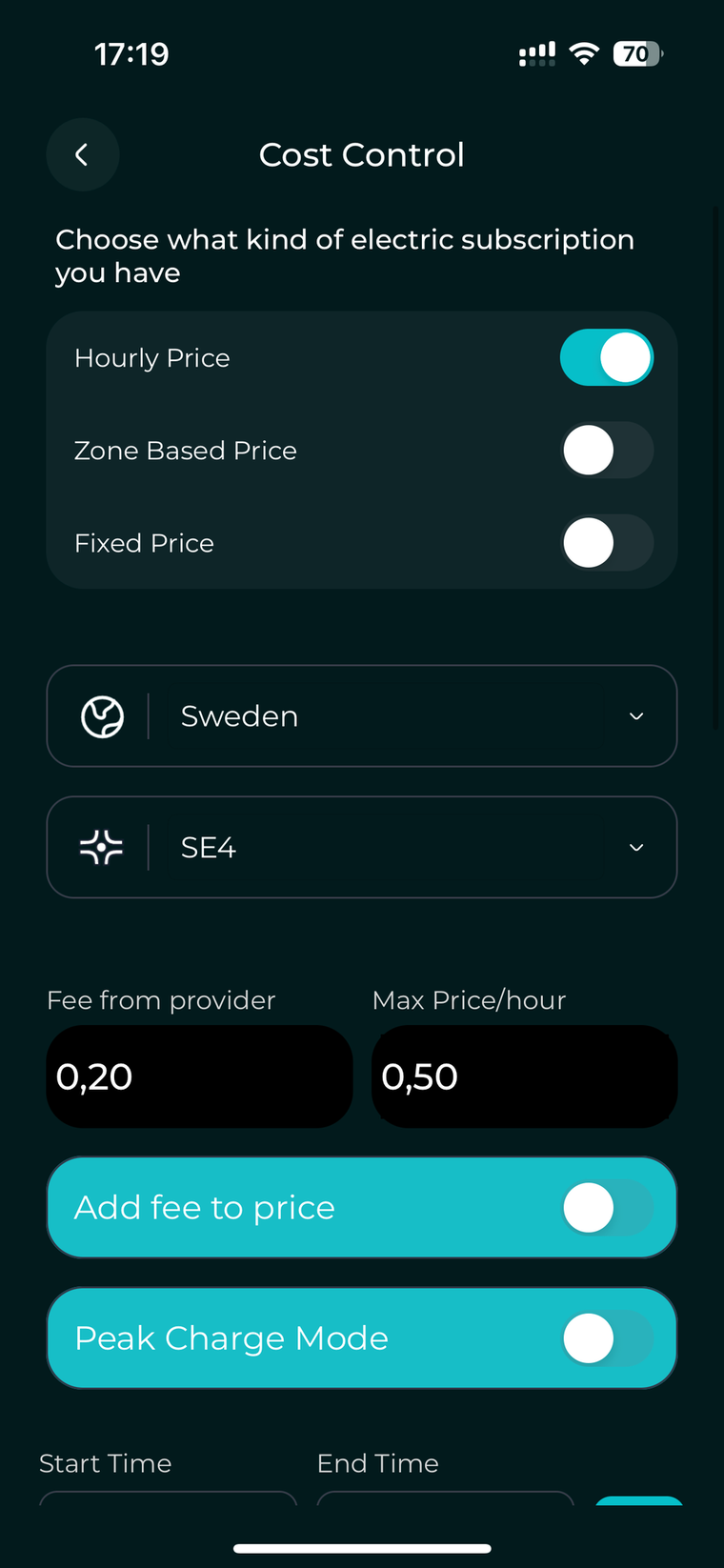
- Pick your electricity price mode Choose Hourly Price, then select your country and region. This makes sure Spapilot fetches the right price data for your location.
- Specify your maximum allowable price Enter the highest price per kWh you are willing to pay. Spapilot uses this as a limit when it plans the heating schedule.
- Add your provider fee (optional) Decide whether to include the provider fee in the fetched hourly rates. For example, if you enter a fee of €0.05 per hour, this amount is always added to the hourly prices, and your maximum price reflects this total.
- Set Peak Charge Mode (optional) To activate Peak Charge Mode, enter the hours you want to exclude from Spapilot's heating. Every schedule then automatically ignores those hours, which protects you from potential peak demand fees.
- Update to save your settings Press Update to save. Then scroll down to the Planner to choose how Spapilot should plan your heating.
Spapilot runs on UTC internally. The app converts to your local time automatically, so check that your phone's time zone is correct.
Planner Basic vs Planner Dynamic
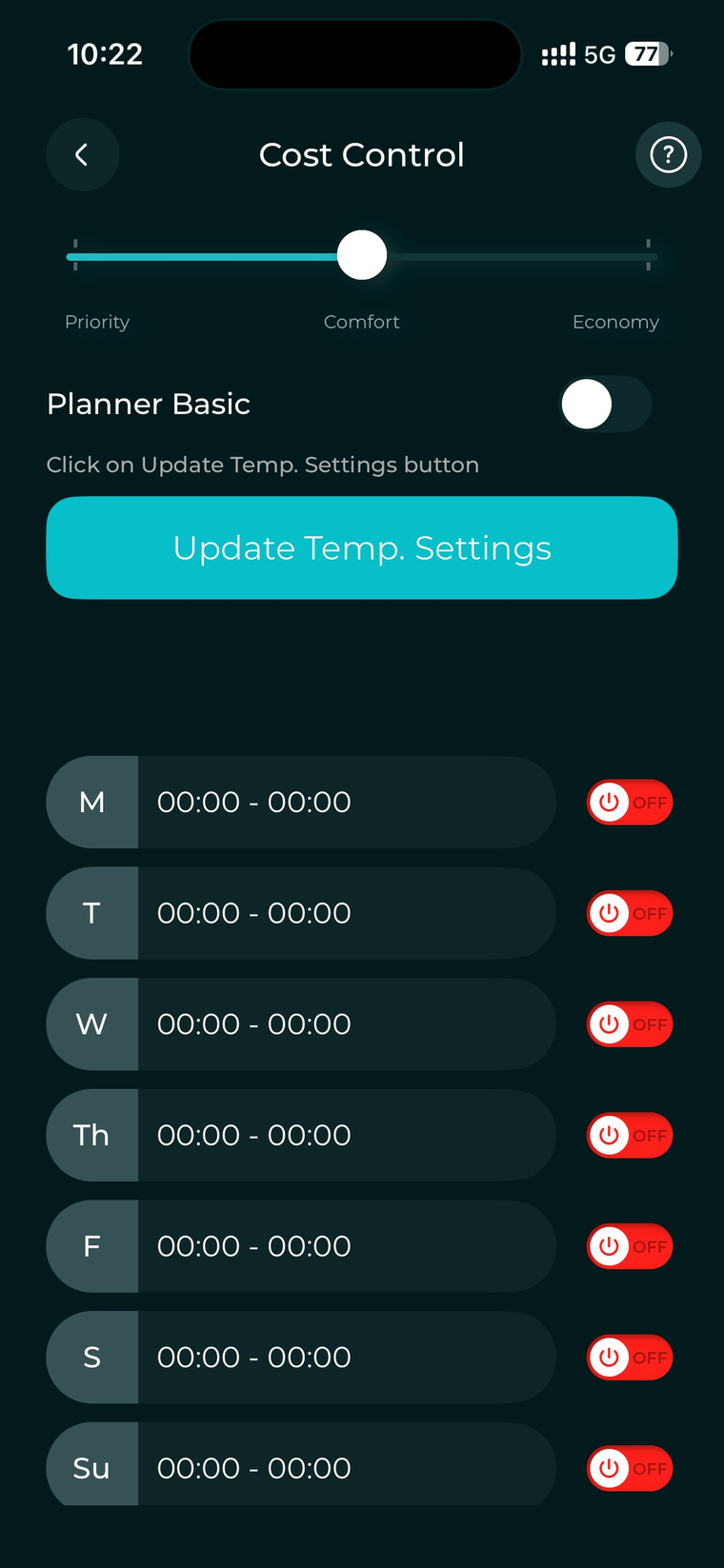
After Cost Control, scroll down to the Planner. With an hourly price you can choose between two planners. Pick the one that matches how hands-on you want to be.
Planner Basic, when you want it really simple
Planner Basic follows one simple idea: only heat when the price is reasonable for you and the water is getting too cold. This means it is very easy to understand why the spa is heating right now. You can clearly see the connection between price, temperature, and heating, with no surprises. Spapilot does not plan far ahead or make complex decisions.
- It looks at when you want to bathe.
- It checks when electricity is cheaper or more expensive.
- It learns how your specific spa heats up and cools down.
- It plans ahead so the water is warm at the right time, without heating more than necessary.
You do not need to think about which hours are best. You just tell Spapilot when you want to use the spa and how warm you want it, and it takes care of the rest.
Choose Planner Dynamic if:
- You want the lowest possible cost without watching prices yourself.
- You want the spa to be ready when you arrive, without thinking about electricity.
- You like the idea that Spapilot is the smart brain behind your spa.
Short summary
- Planner Basic, best if you want it simple and easy to understand.
- Planner Dynamic, best if you want it smart, automatic, and as cheap as possible over time.
Planner (Dynamic), settings
When you open Planner Dynamic, you set a few preferences and then schedule your days. Spapilot handles the optimization from there.
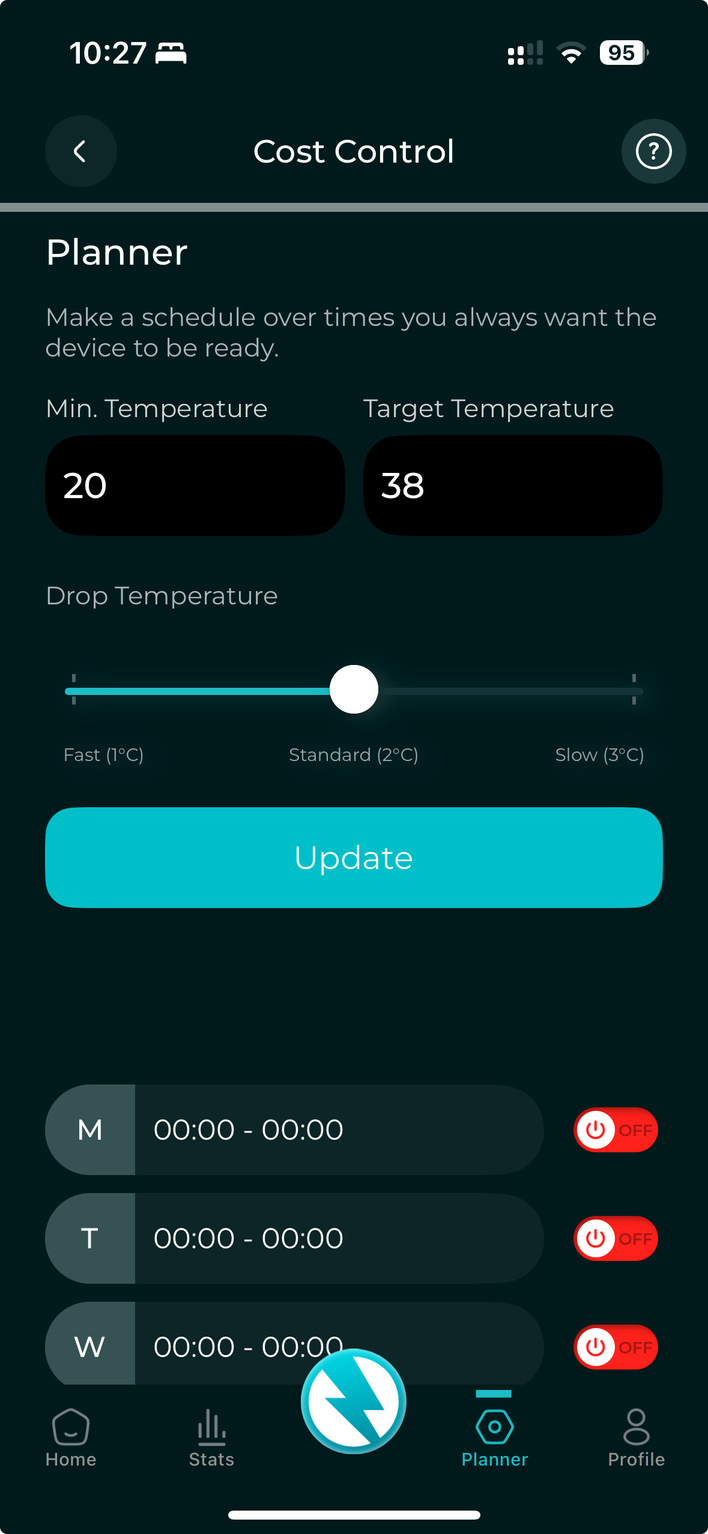
- Minimum temperature alert Set your minimum temperature alert. If the water drops below this threshold, Spapilot notifies you promptly.
- Target temperature Your target temperature is what Spapilot consistently aims for during planning. Set the desired temperature so your spa is ready when you need it.
- Heat mode Heat mode adjusts when Spapilot should react to heat. This is optional to change.
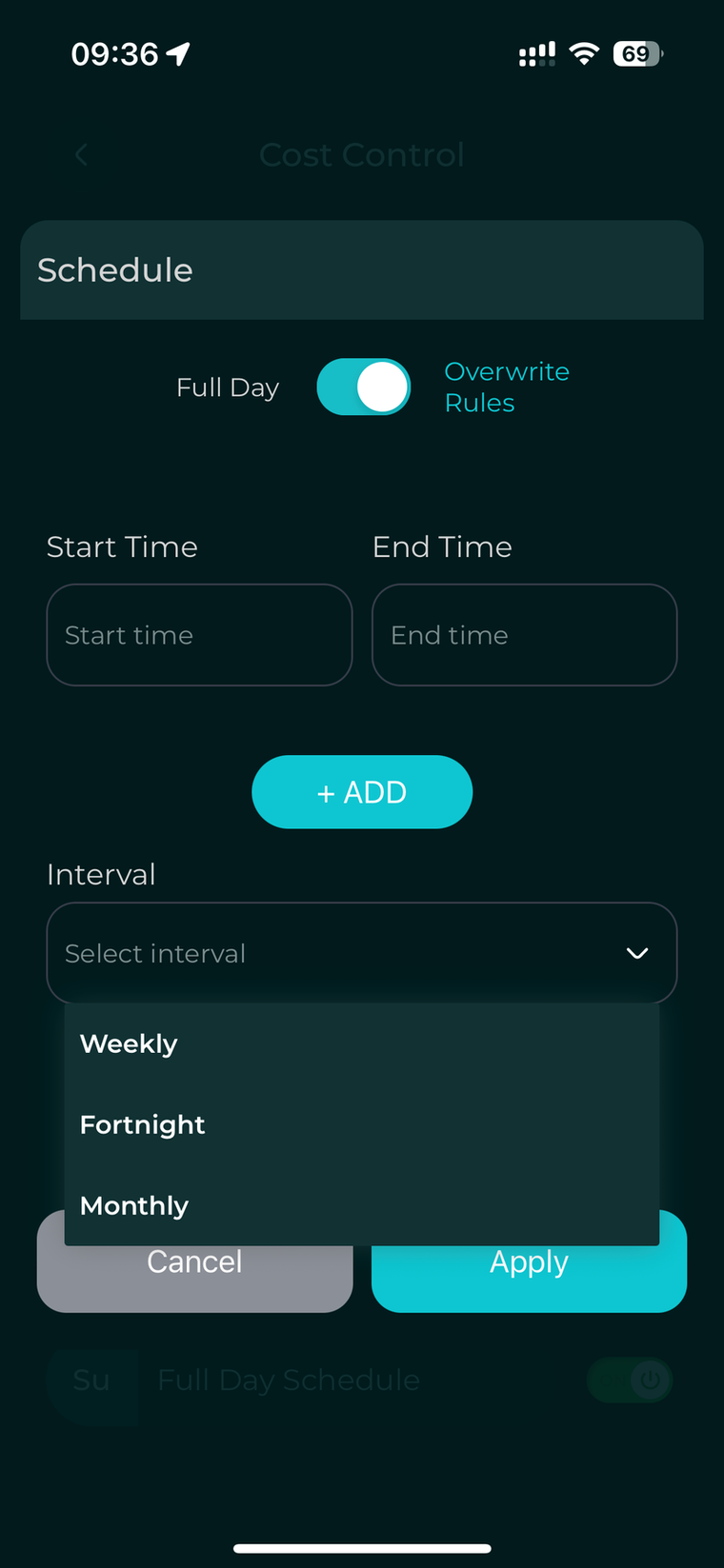
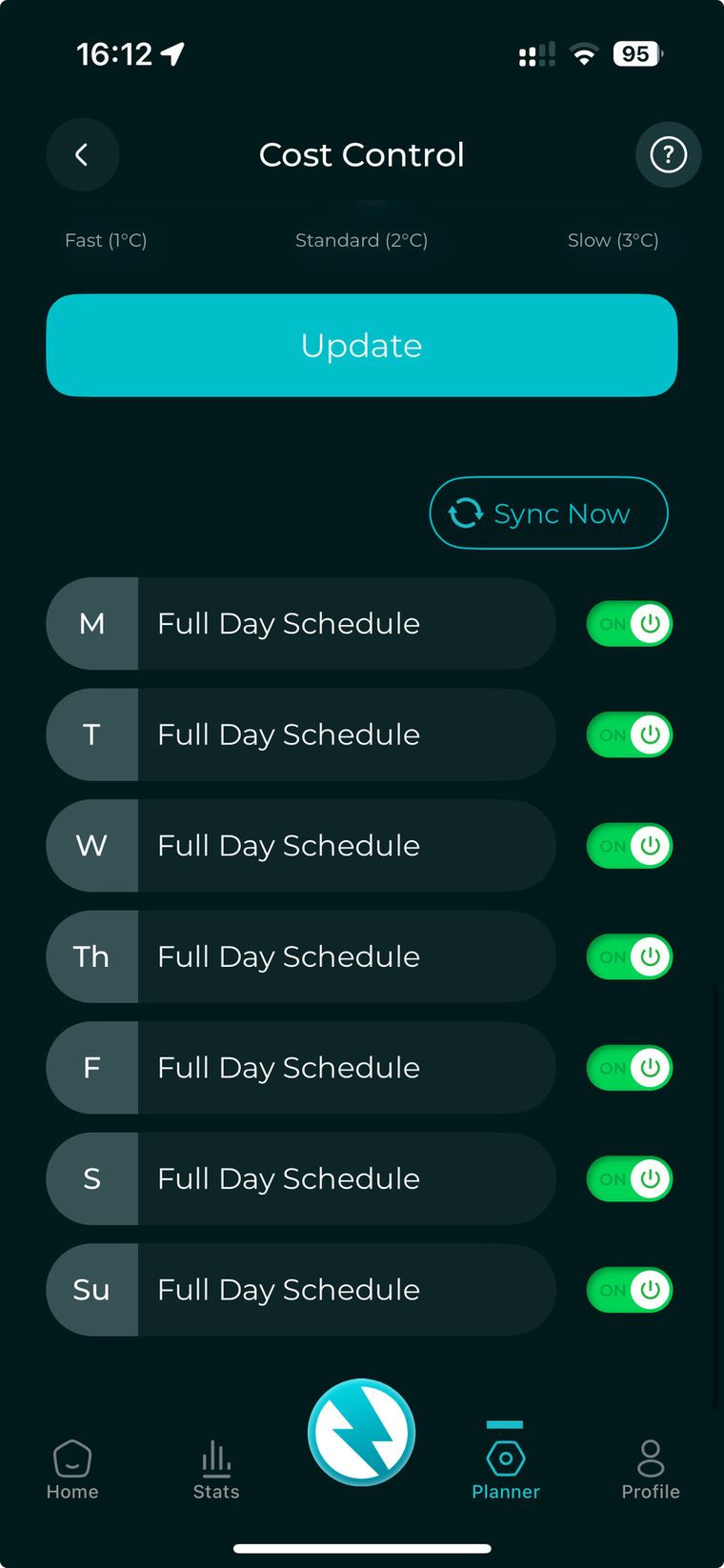
- Day and time scheduling Tap all days or specific days and times. A pop-up appears for each, where you pick your preference and set the interval. For more advanced use of specific days and times, read this guide fully.
- Update to save Press Update so the Planner knows what adjustments to make.
Making sure Spapilot is working
Once Spapilot has a setting to optimize your spa, here are the most important things to know so you can confirm it is working.
When Spapilot will not heat, even below your maximum price
- With Planner Dynamic active, Spapilot only heats as much as necessary. For example, if a plan for a given day needs 2 hours, it selects the 2 cheapest hours available that day.
- If you start Instant Heating and then turn it off manually, Spapilot assesses the situation before resuming. During this assessment it will not heat, which can take up to 30 minutes.
- If you have not activated Planner Basic or Planner Dynamic, Spapilot will neither heat nor hold off according to your settings.
- Spapilot will heat during filtration cycles, since those fall outside Cost Control and are highly individual.
- If you enable Instant Heating or the Instant Heating Timer, Spapilot heats regardless of pricing or other rules, until you turn it off, the timer ends, or it reaches midnight.
How to tell if Spapilot is heating
You can compare the Initial Plan with the Optimized Plan by tapping the calendar icon in the top right corner. This is available with Planner Dynamic, and shows the exact slots Spapilot has heated or is heating.
Live Control, for spontaneous changes
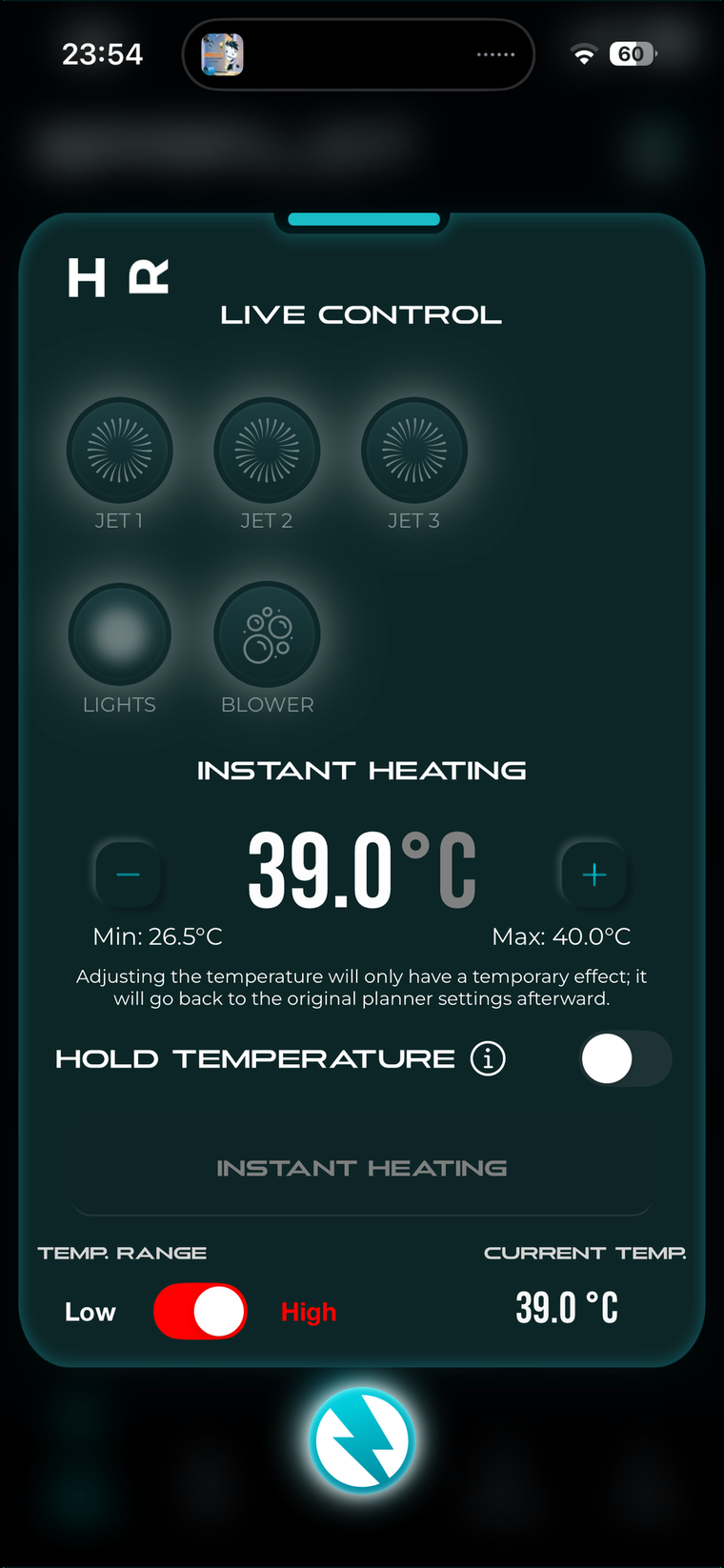
Live Control means quick, temporary changes that take effect immediately and only for today. Use it when you want flexibility in the moment, but rely on the Planner for the most comfort, energy savings, and efficiency over time.
Never use Live Control to change settings here if you are not taking a bath today. All settings to the system are made in Cost Control. Everything you adjust in Live Control resets at midnight.
How Live Control works, here and now
Live Control is Spapilot's feature for quick, temporary changes in real time. Spapilot responds instantly to your commands, perfect if you suddenly feel like an unplanned bath or want to adjust the temperature just for today.
Any change you make takes effect immediately. For example, if you change the temperature and press Update, Spapilot heats or cools the water to your new setting, but only for the time Instant Heating is on. As soon as it hits the target temperature, or you deactivate it, the Planner checks and resumes. Spapilot then automatically returns to the next schedule and settings in the Planner, so your spontaneous changes only apply right now.
When to use Live Control
- When you want to use the spa outside of your regular schedule.
- When you want to temporarily raise or lower the temperature.
- When you want to test different functions and see the results immediately.
Live Control is designed for temporary, spontaneous changes. For a more permanent change, such as adjusting the temperature or scheduled times going forward, always do this in the Planner and create a new schedule. Adjusting the temperature and activating instant heating can throw off your schedule and make the day less cost-effective.
Home Screen
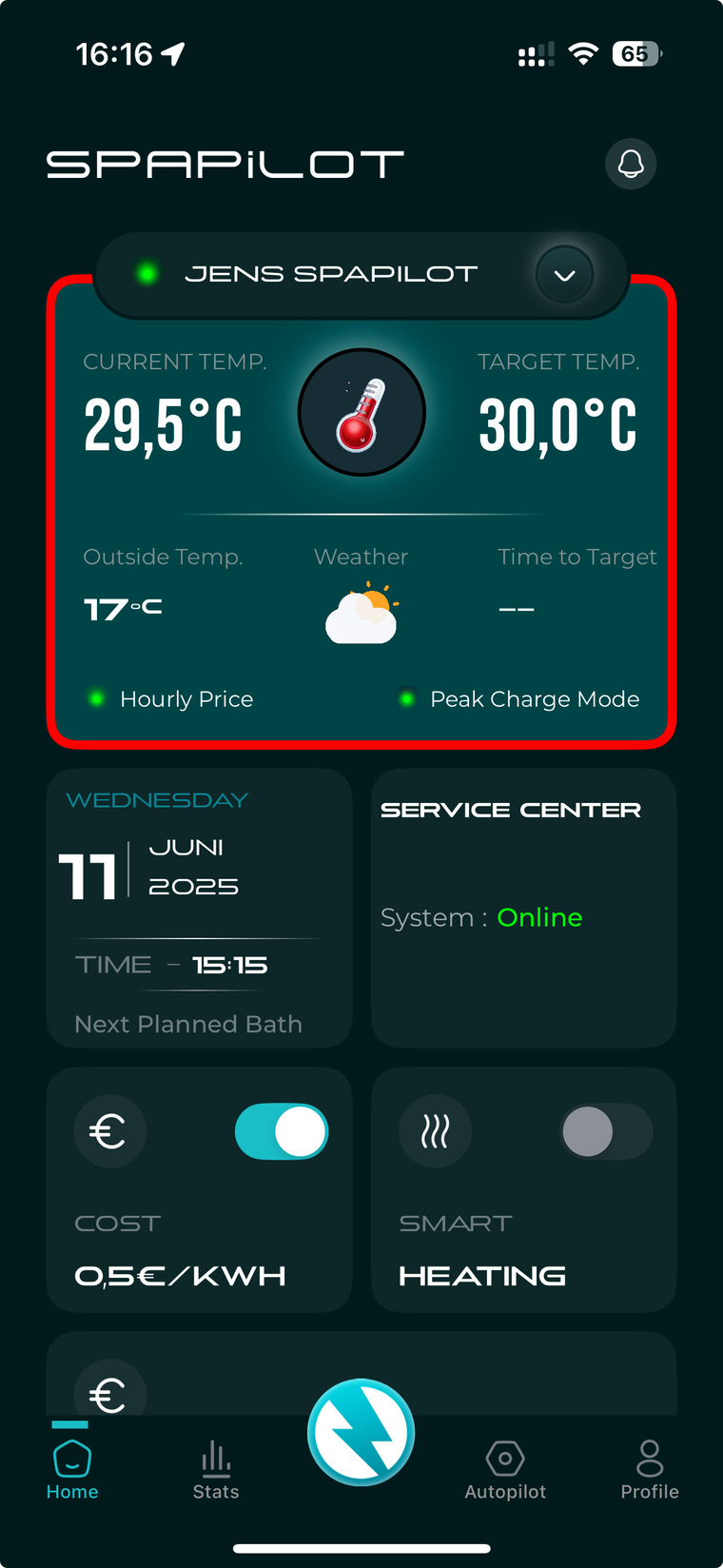
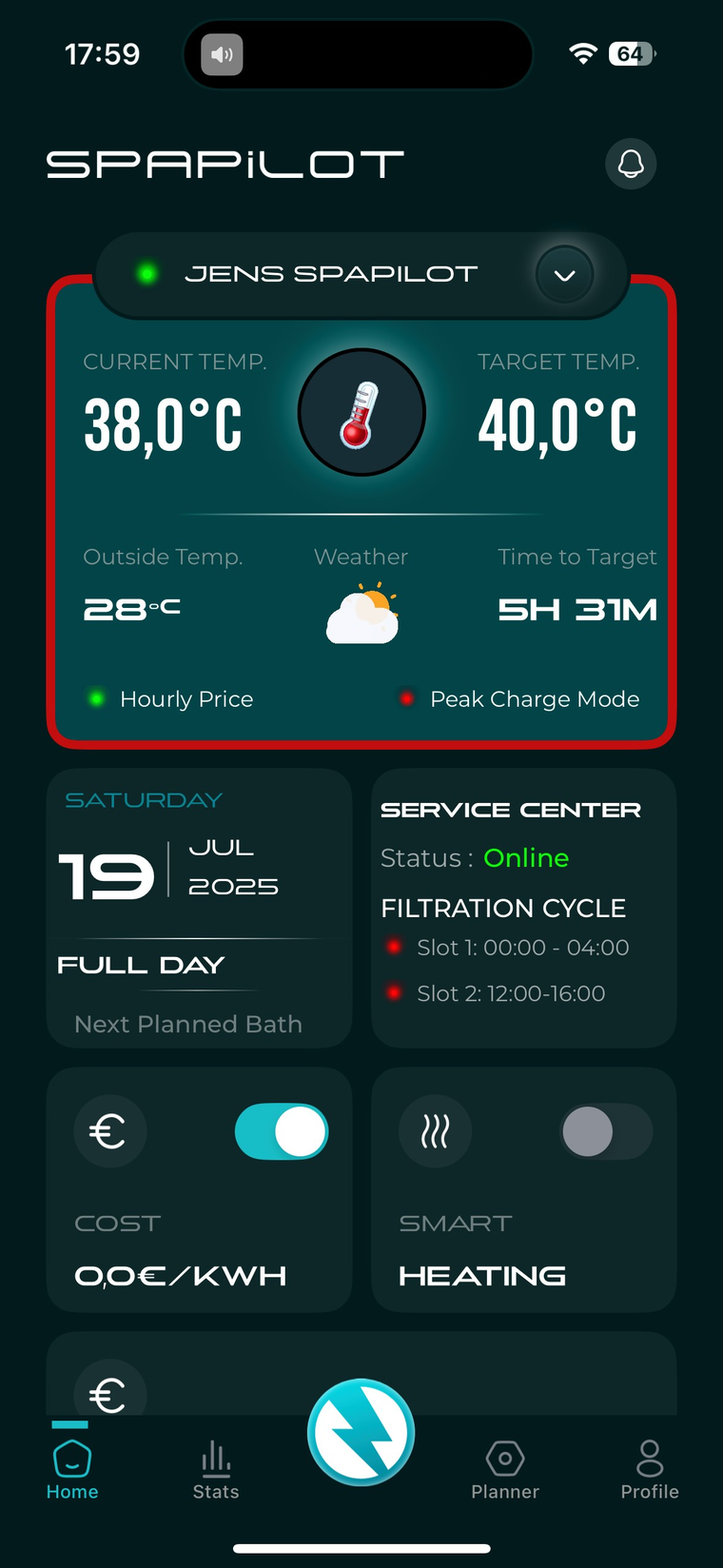
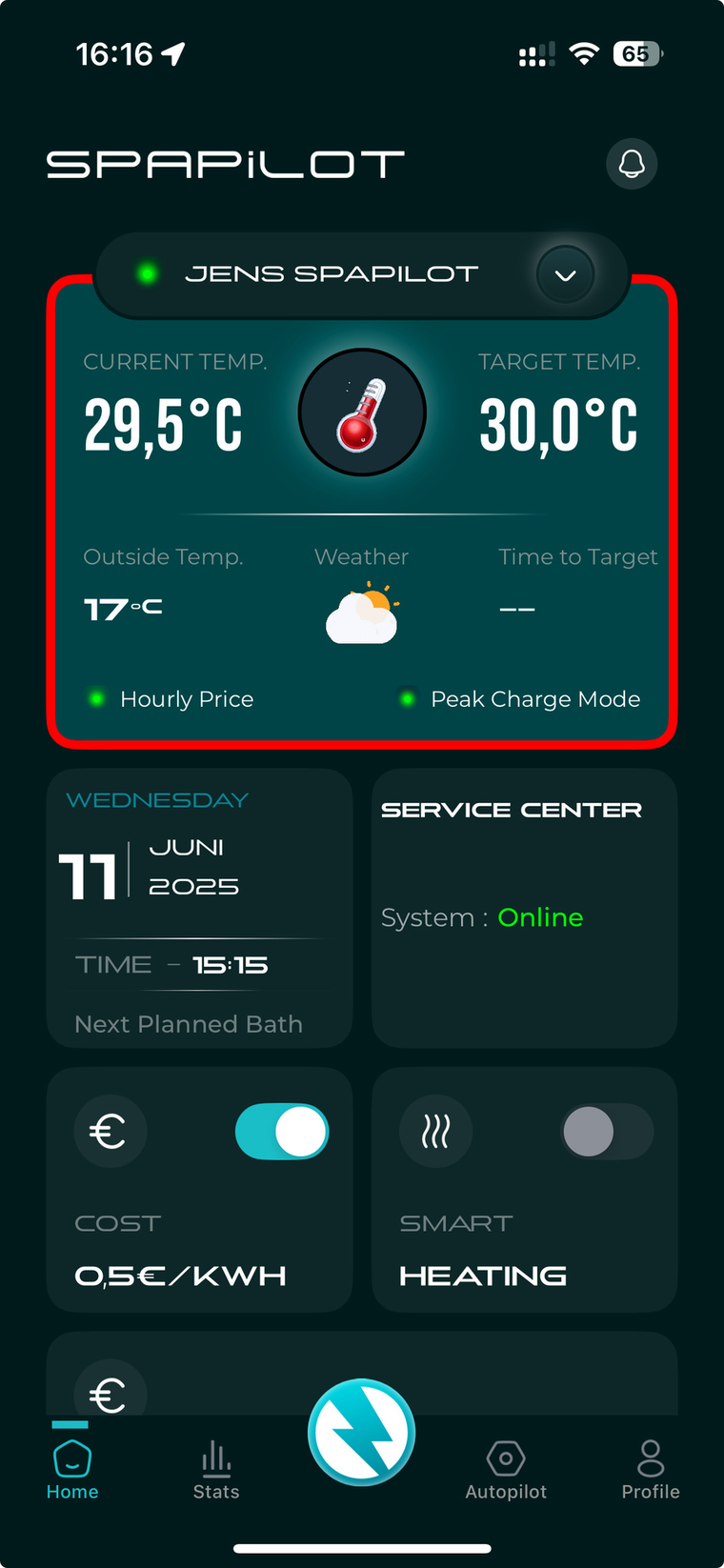
When you open the Spapilot app, the home screen gives you a quick overview of everything important about your spa. Here is what each section means.
Overview, part 1
Overview, part 2
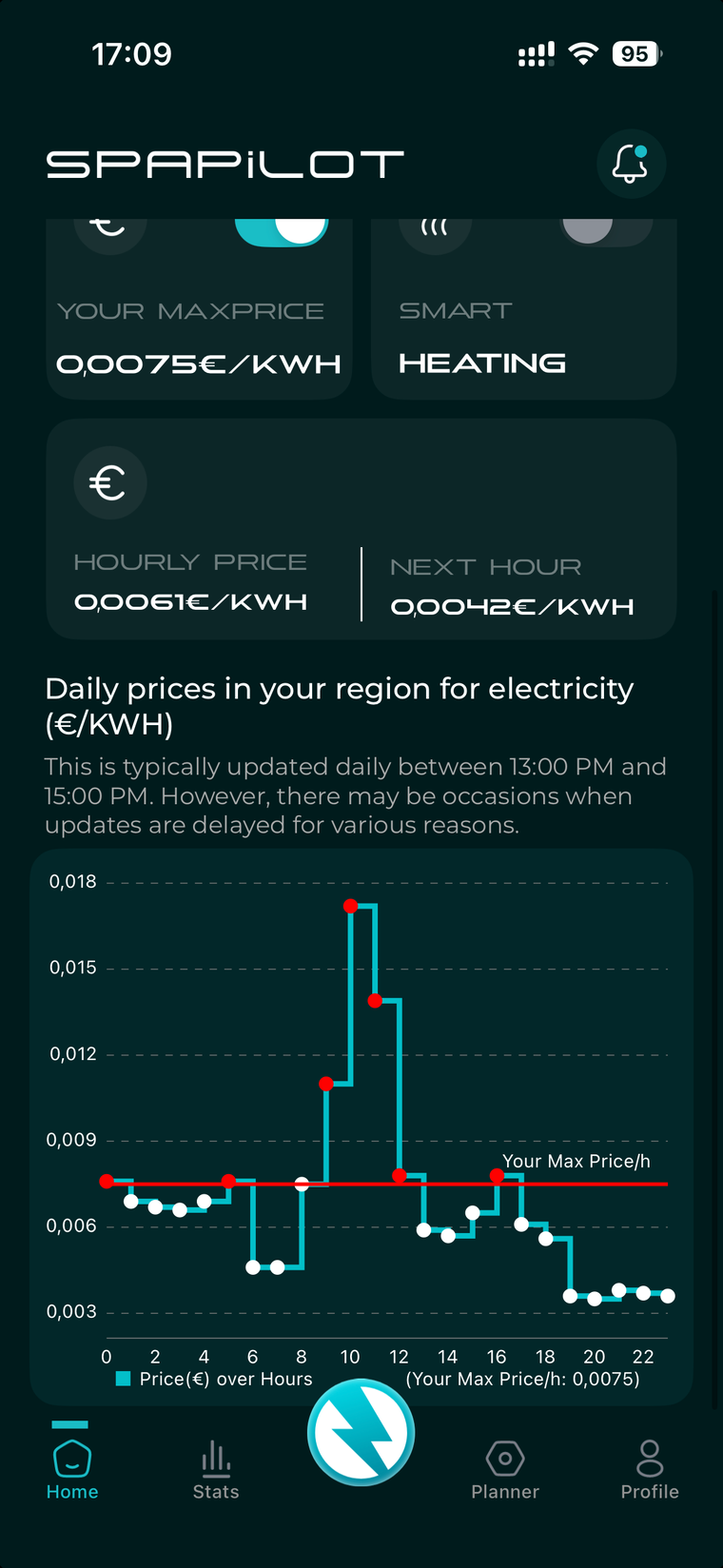
Overview, part 3, the price graph
This graph gives a clear overview of available prices, showing your maximum cost and whether Spapilot is allowed to heat. If a line is missing, your maximum cost is either much higher or much lower than current prices. If all dots are red, your maximum cost limit is far below the day's price range. If they are all white, your limit is much higher.
Lightframe, status indicators
The Lightframe on the device communicates Spapilot's status at a glance, so you can quickly tell what it is doing without opening the app.
Statistics, energy and cost
In the Statistics tab, you get a clear overview of how much energy your spa has used and what it has cost, based on your scheduled baths and Spapilot's optimization. This works with Planner Dynamic.
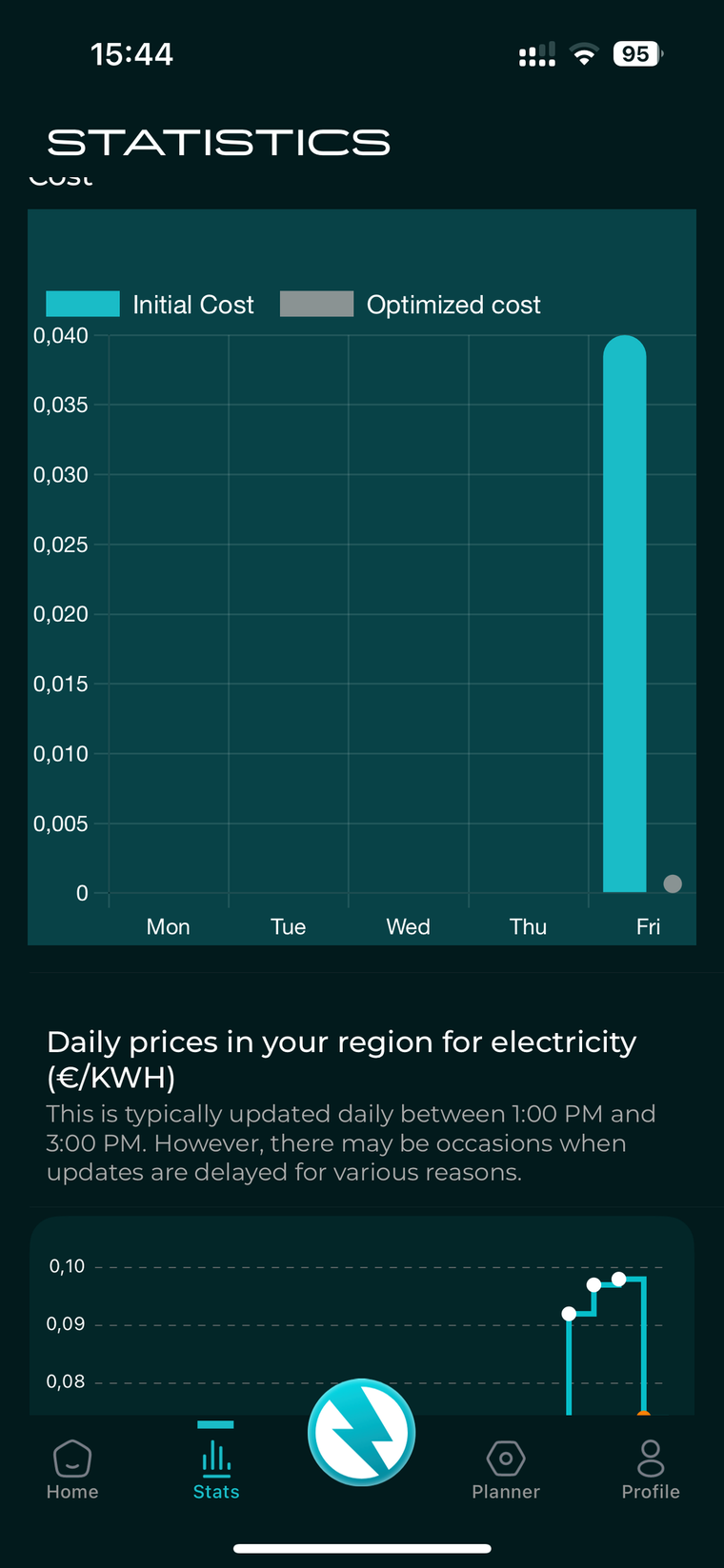
To get accurate figures, you must enter the power in kW of your spa's pumps and units, and the correct rates in Cost Control. If you did not do this during initial setup, go to Profile > Device > Edit Device and enter the correct values. You can usually find the power in kW on your spa's nameplate, in its manual, on the manufacturer's website, or by searching online. If you are unsure, contact us and we will be happy to help.
Statistics gives you full control over your energy use and costs, and helps you make smarter decisions, so you can always enjoy your spa in a climate-smart and cost-effective way.
Next Planned Bath
With Next Planned Bath, you get a clear overview of your next scheduled spa session directly in the app, both what you set when creating the schedule and how Spapilot plans to prepare your spa.
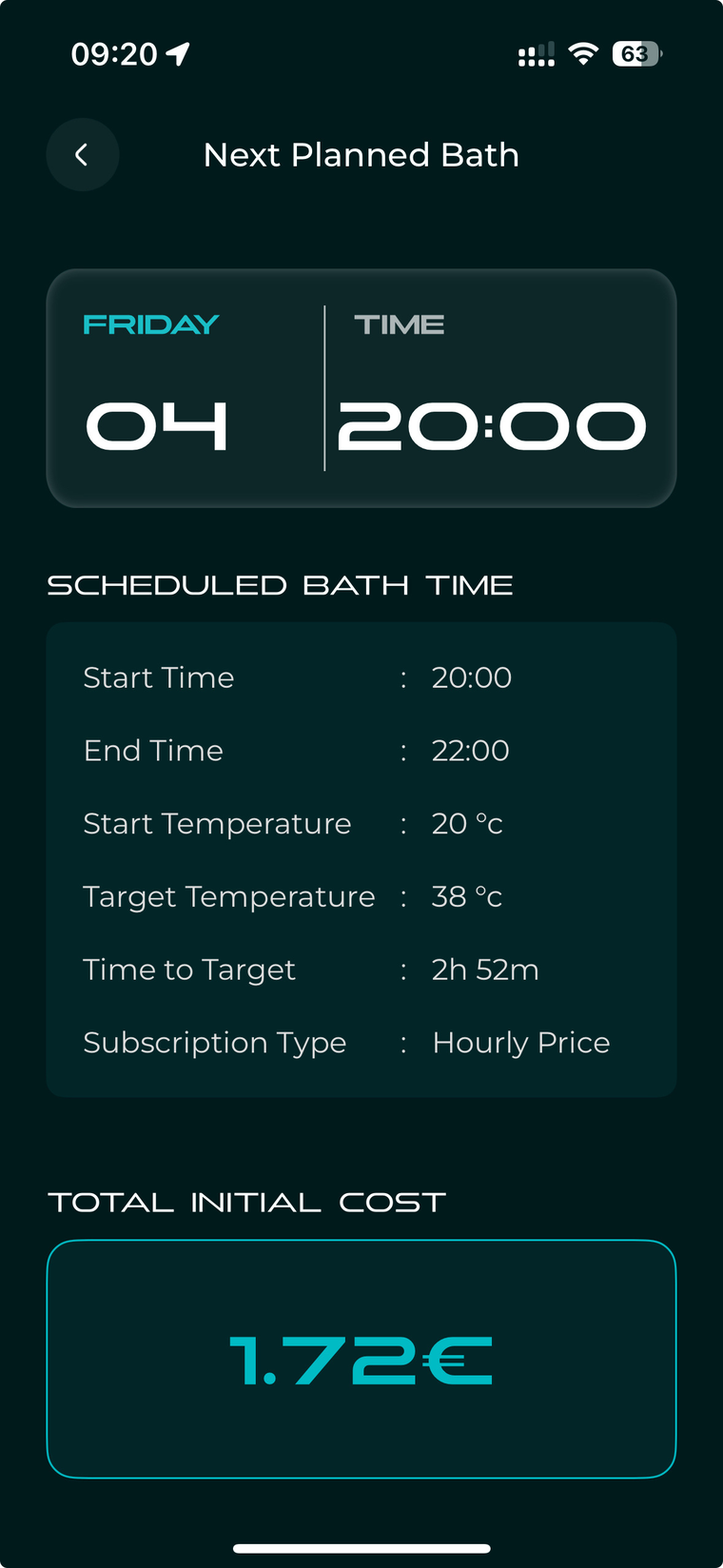
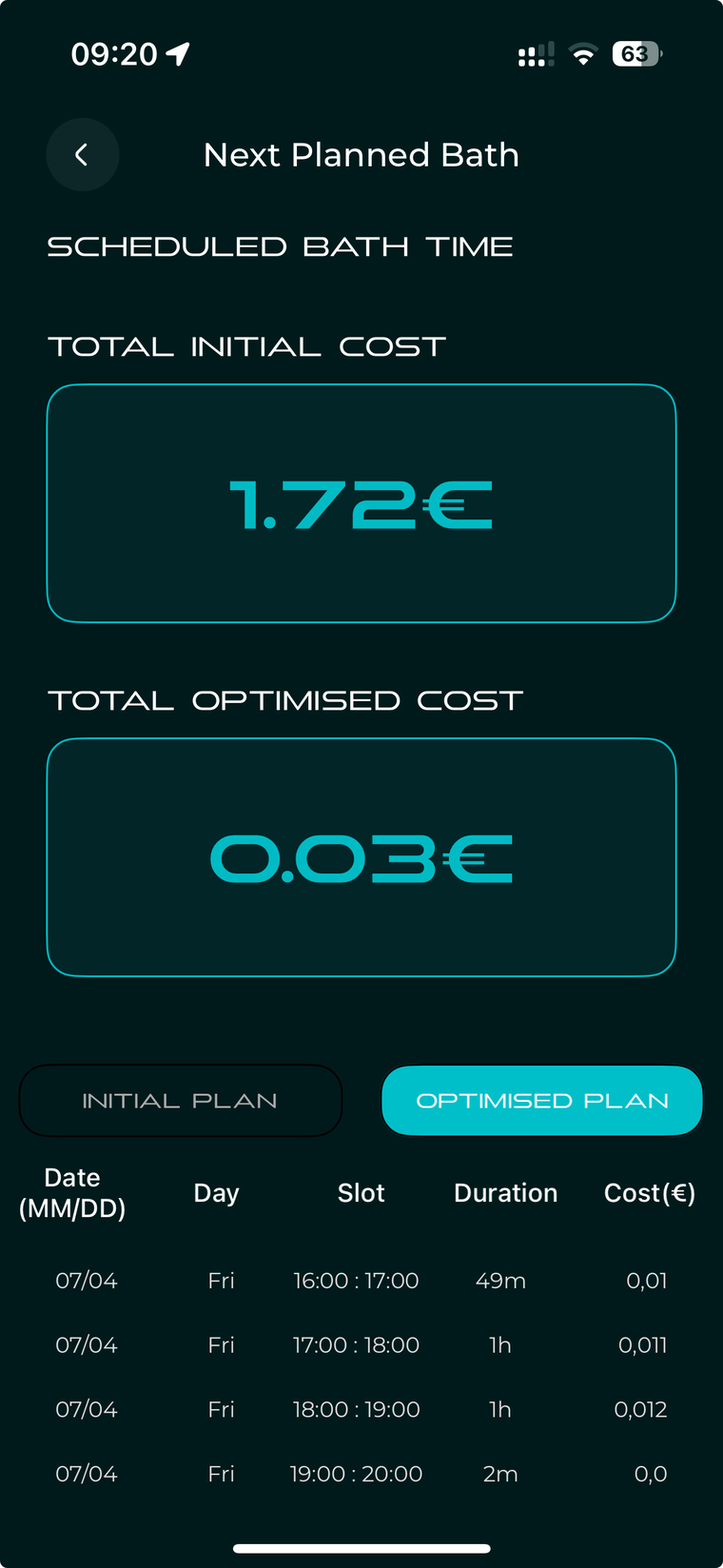
- See when your next bath is scheduled.
- The temperatures set, and the time required to reach your target, are based entirely on the choices you made when scheduling.
- Total Initial Cost shows the first estimated cost to heat your spa according to your original plan.
- Total Optimized Cost shows the actual optimized cost, as Spapilot updates the plan in real time to find the cheapest hours.
- The table shows how heating is scheduled hour by hour. The Initial Plan is the starting point, while the Optimized Plan shows how Spapilot adjusted heating based on price changes and other factors.
App navigation, bottom menu
The bottom menu gives you quick access to the five main areas of the app.
Profile, settings and information
The Profile tab is where you manage your account and important spa settings. Here is what each section means.
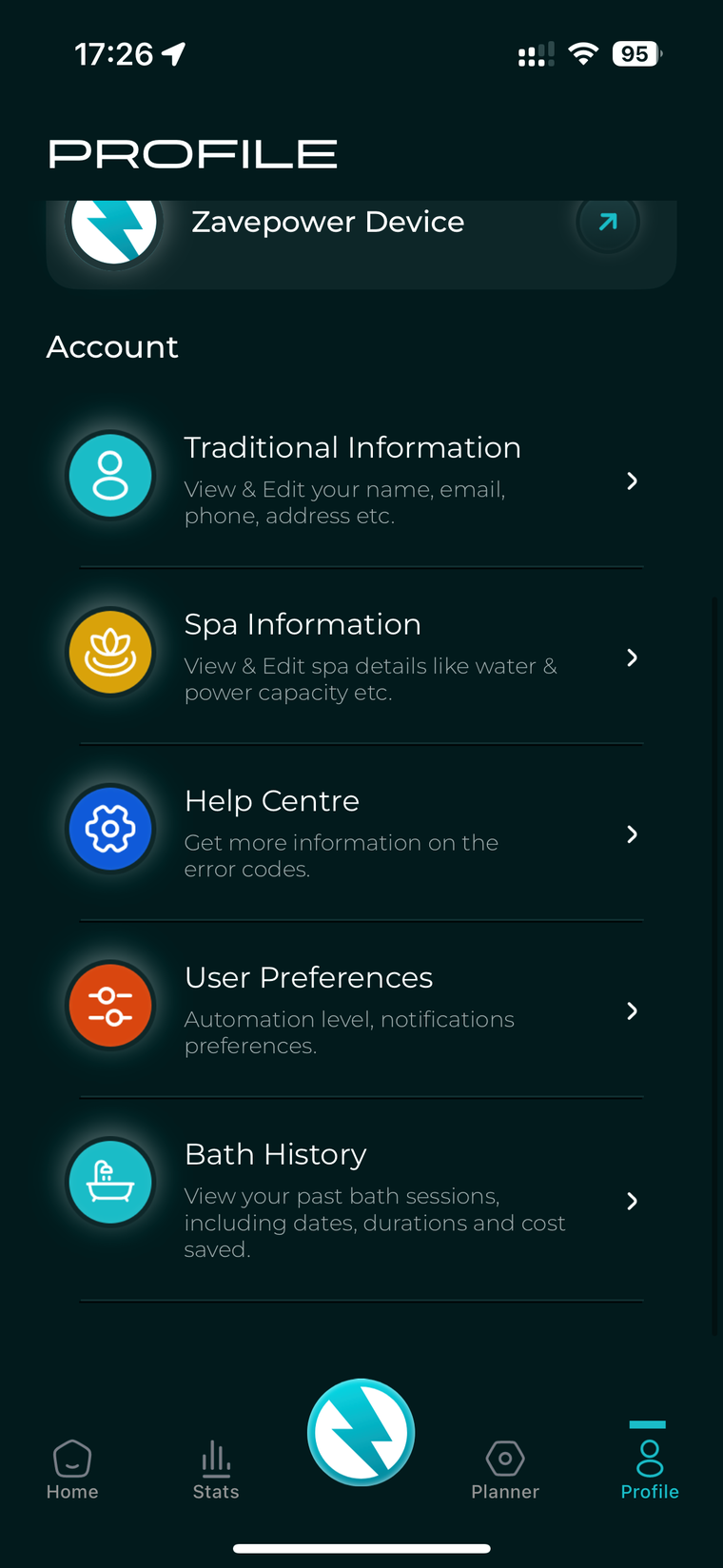
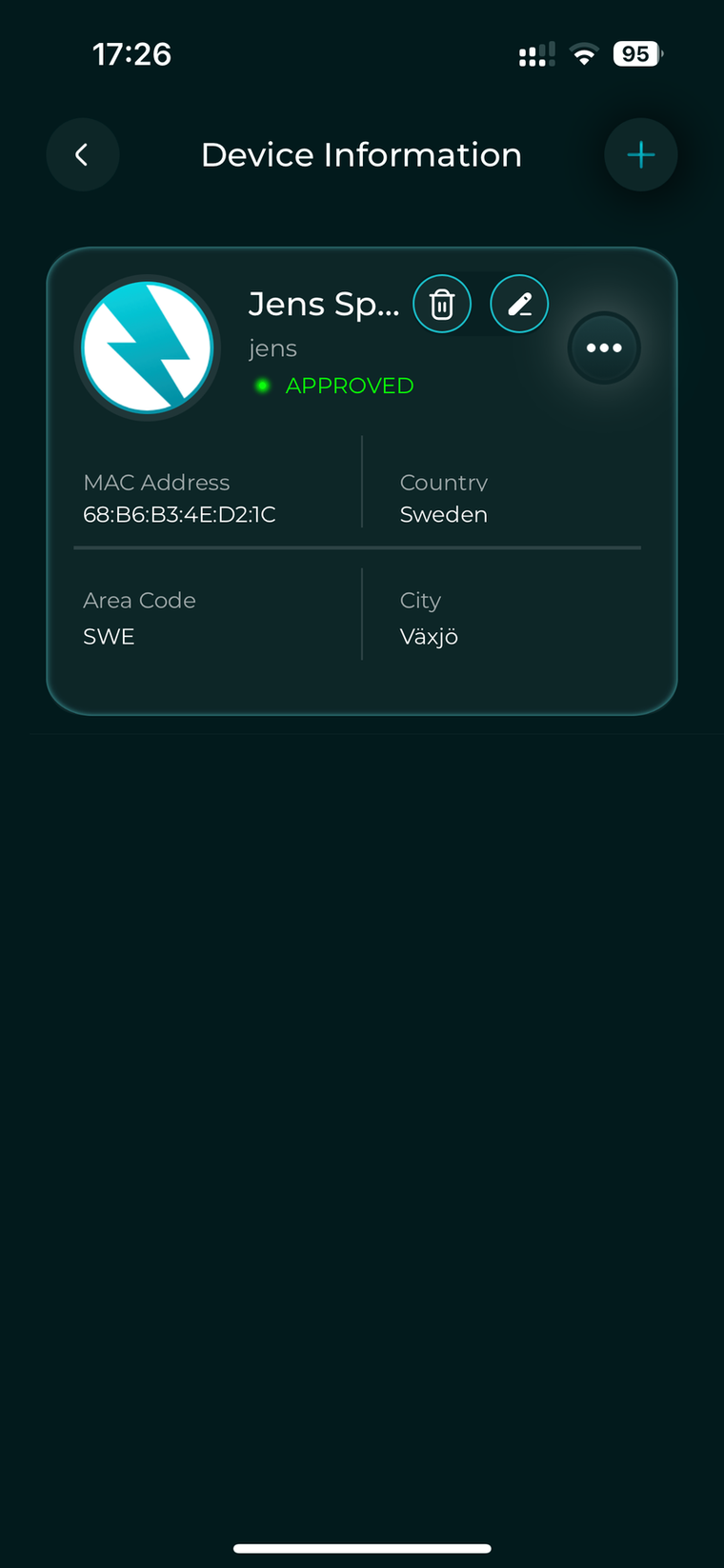
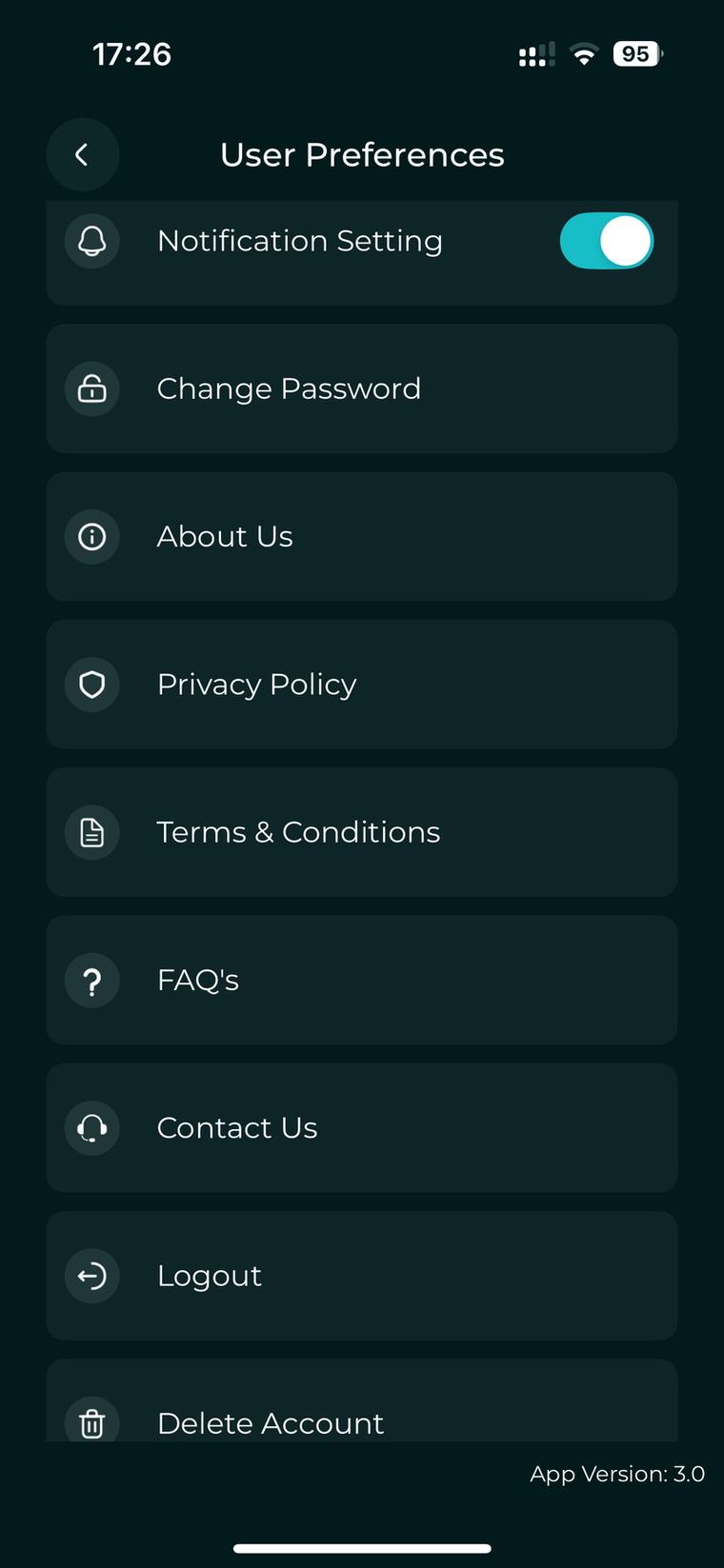
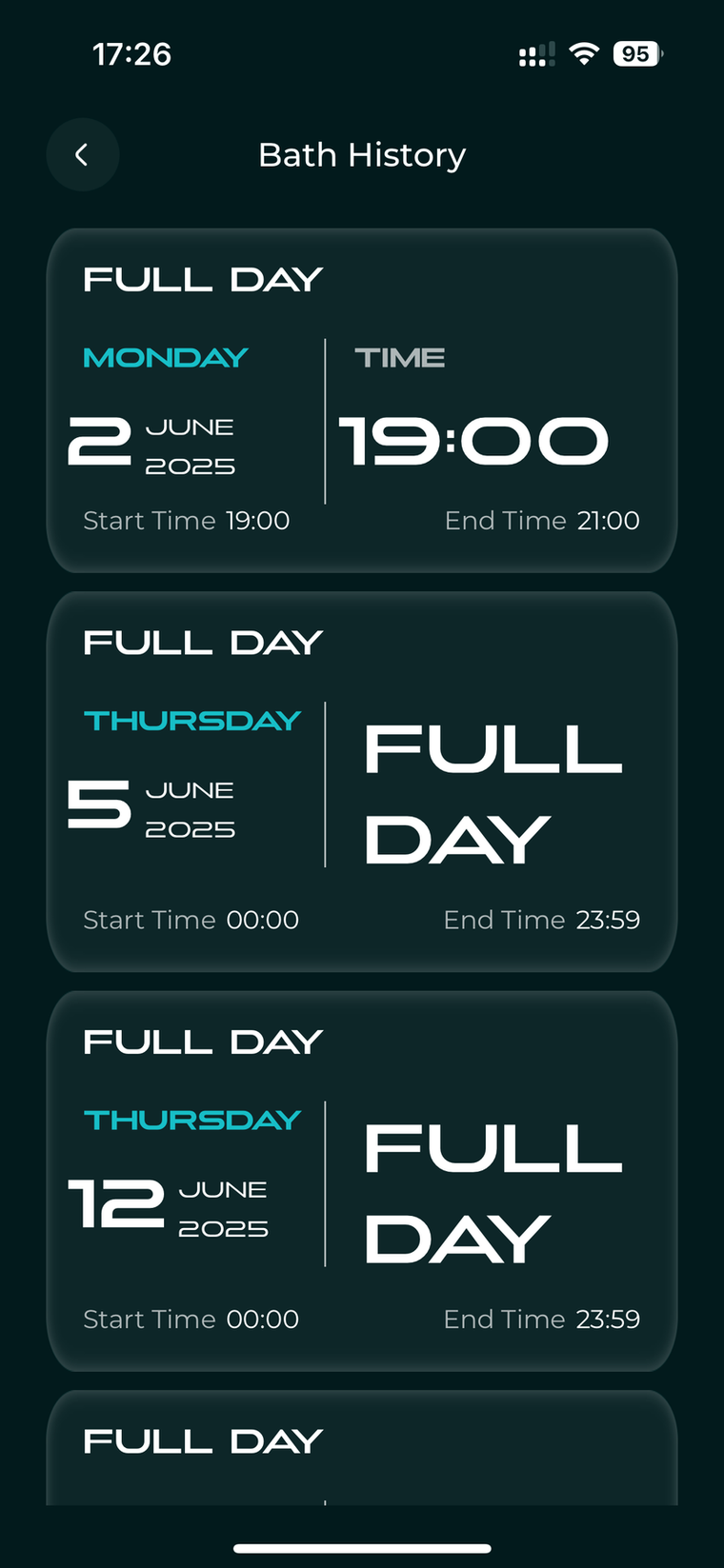
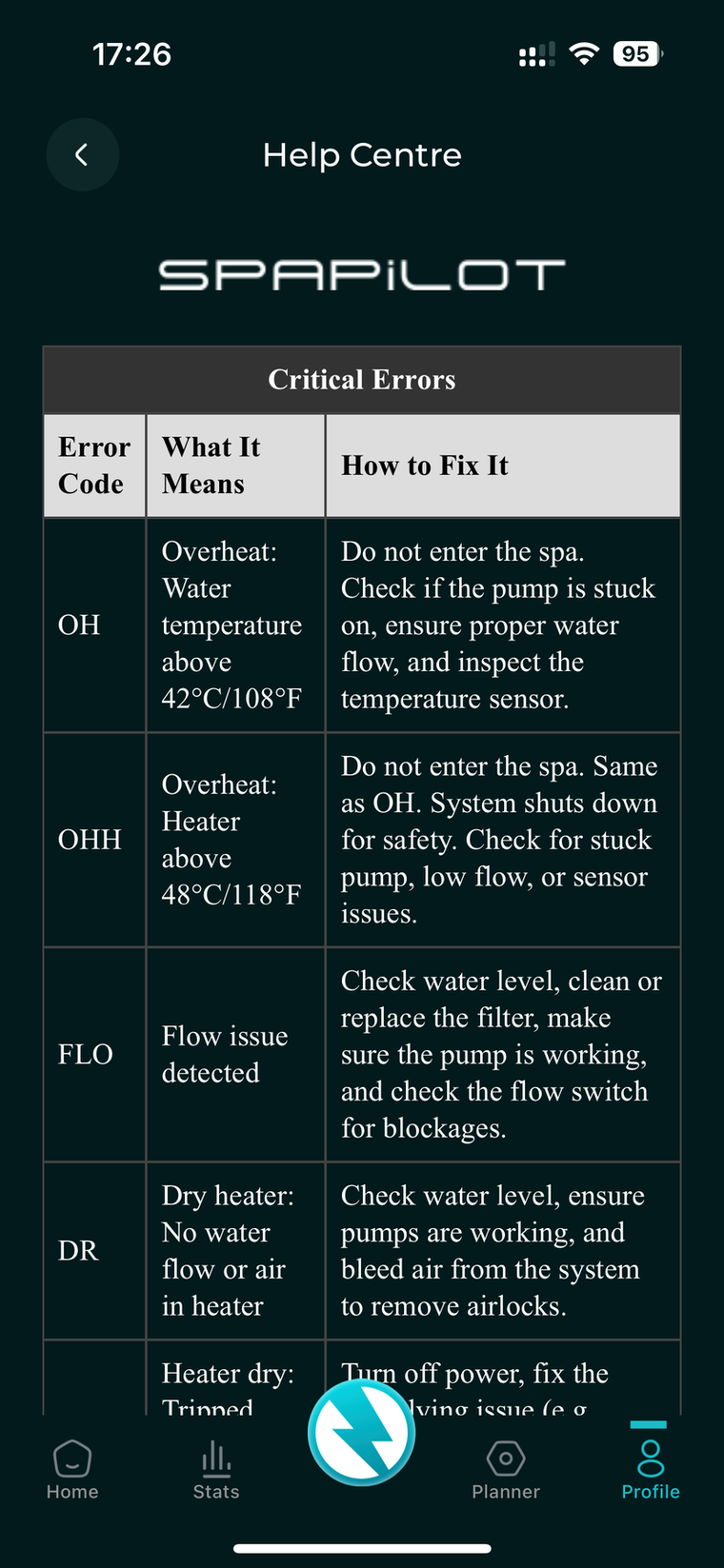
The Profile tab brings everything together so you can easily manage your details, optimize your spa, and get the most out of your Spapilot experience.
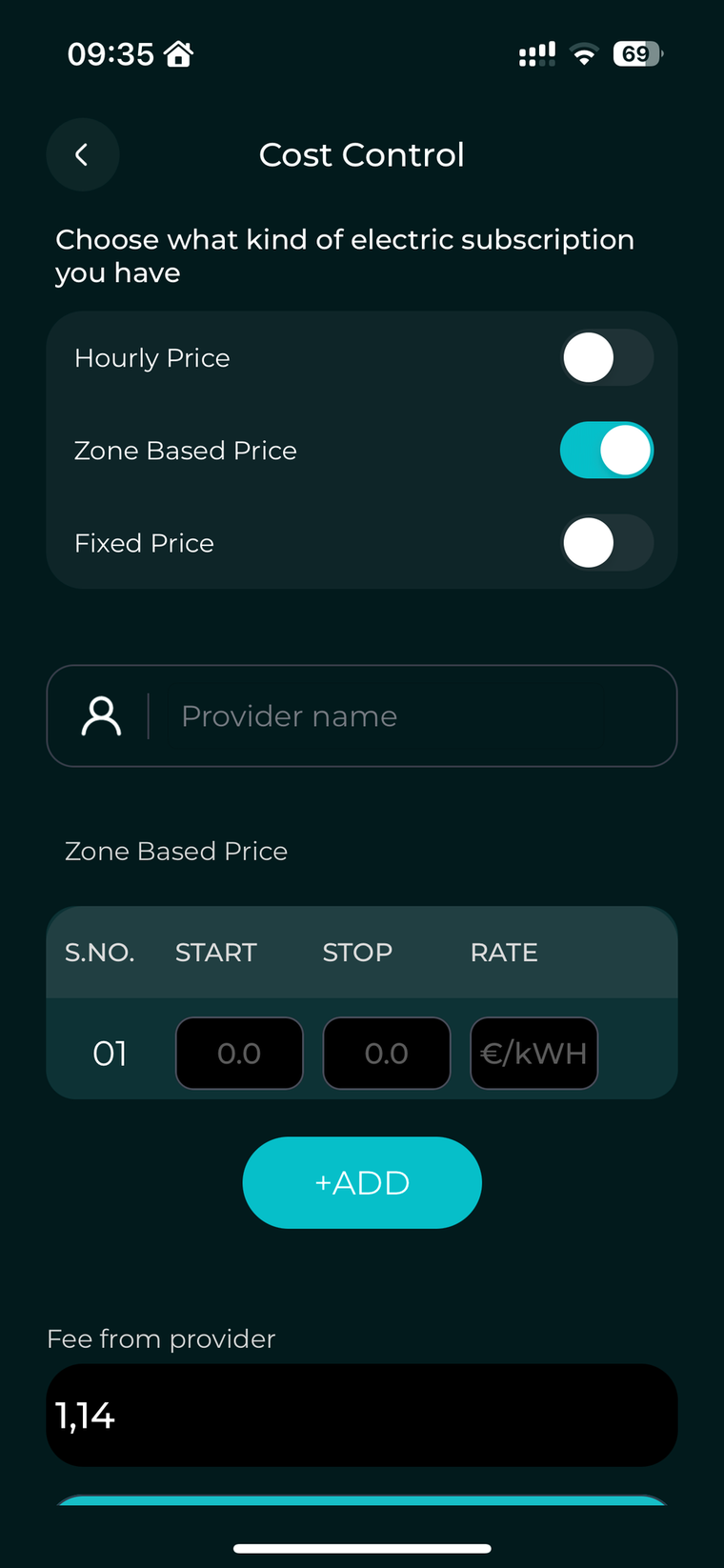
Advanced, choose your electricity plan
This section is intended for advanced users. Before entering your electricity price, select the type of plan you have. This helps Spapilot calculate your energy costs as accurately as possible.
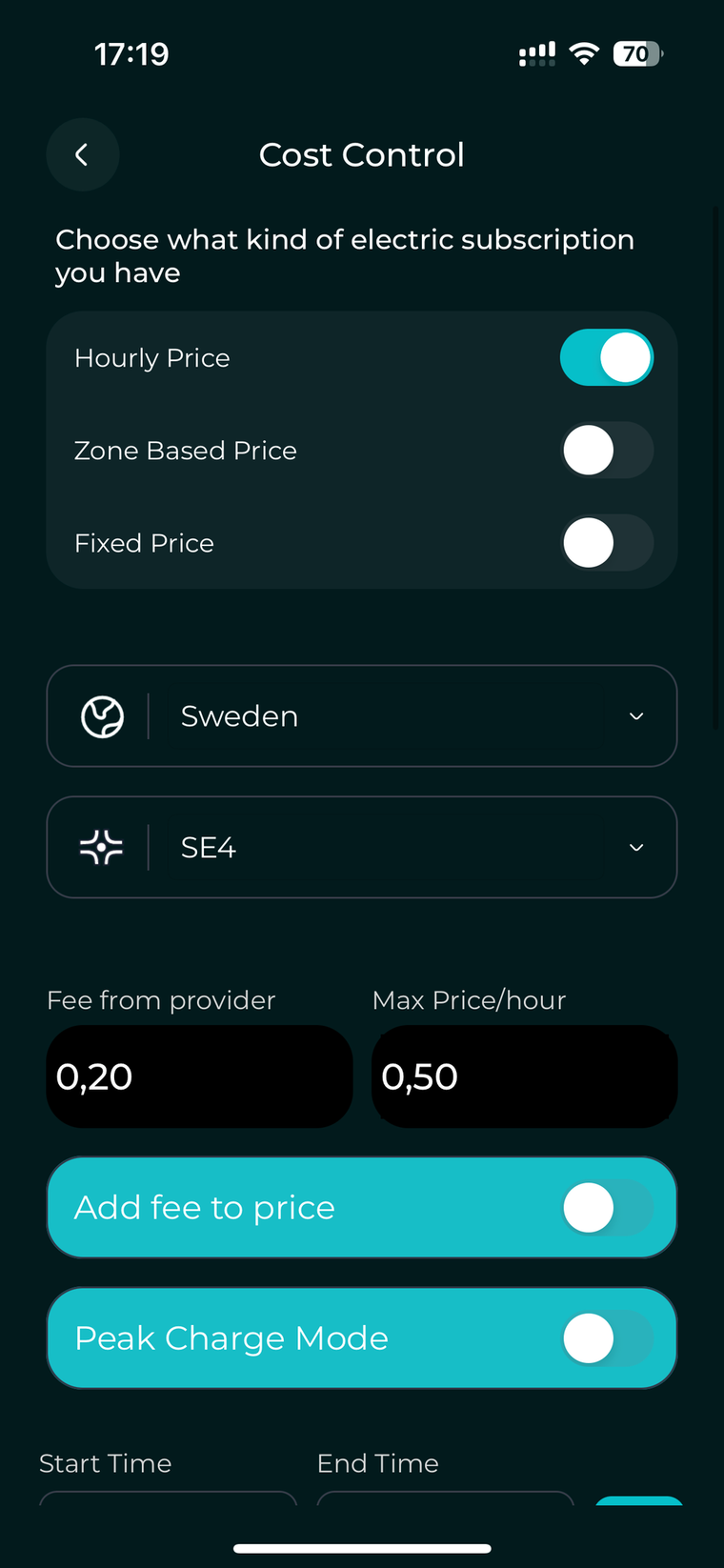
How to do it
In the Cost Control settings, choose the electricity plan that matches your contract. If you are not sure, check your electricity bill or ask your provider.
Why this matters
Once you choose your plan, the settings and options below adjust automatically to fit your choice. For example, with Zone-Based you can set different prices for different times of day. Choosing the right plan lets Spapilot give you more precise information about your actual energy costs and helps you save as much as possible.
Principles of Planner
These are the core settings inside the Planner, and one rule to remember when you change them.
- Minimum temperature alert Alerts you if the temperature drops below your set level. If the temperature goes under 10°C, the system activates automatically.
- Target temperature The temperature you want the Planner to aim for at every planned time, whether for the whole day or for specific times.
- Heating frequency Choose whether Spapilot should prioritize frequent heating or take an economical approach that heats less often.
- Press Update Once you have configured your settings, press Update so the Planner understands what adjustments to make.
To adjust your schedule settings, repeat this step every time and remove the previous schedule first. If you want to change the maximum price or prices, update them under subscriptions as well.
Electricity plan details
Each electricity plan has its own settings and reasoning. Here is what to enter and why for each one.
Fixed Price
Enter your fixed electricity price per kWh, for example €0.15/kWh.
With a fixed price plan, you always pay the same rate per kWh, no matter the time of day or how much you use. The cost per kWh does not change, but there are other important aspects to consider.
- Environment and sustainability. Your focus shifts to how much electricity you actually use, since the price is always the same. Spapilot's smart scheduling and energy-saving features reduce your overall consumption, which is good for both the environment and your energy footprint.
- Power protection. Many fixed price contracts also include a power-based fee, where you can be charged extra for high power peaks. Spapilot's power protection helps you avoid these peaks by controlling when your spa heats, giving you better control over your total cost even when the kWh price is fixed.
- Energy tracking. Spapilot tracks the energy used for your planned and scheduled spa sessions, not for the entire time the spa is connected, for a clear and accurate picture of the times that matter most to you.
Hourly Price
- Select country and region. Start by choosing your country. If your country has different electricity price zones, for example Sweden, also select your correct region. This ensures Spapilot fetches the right price data.
- Set your maximum price per kWh. Decide and enter the highest price per kWh you are willing to pay over a 24-hour period. Spapilot uses this as a limit when planning the heating schedule.
- Add provider fee. If your contract has a fixed provider fee per kW, add it here. You can choose whether this fee is included in the hourly prices. For example, with a fee of €0.05/kWh and the toggle on, Spapilot always adds €0.05/kWh to every price slot fetched each day, then checks whether the price is over or under your limit. Enter 0 if you do not know it or do not want it active.
How it works. Spapilot automatically fetches the current hourly prices for your region each day. Based on your maximum price and any provider fees, it creates a heating plan that only uses electricity during hours at or below your limit. This gives you the lowest possible cost for the day, without having to monitor the market yourself.
Zone-Based Price
Select and enter the fixed electricity price for each time zone during the day. For example:
- 06:00 to 12:00, €0.14/kWh
- 12:00 to 16:00, €0.18/kWh
- 16:00 to 21:00, €0.22/kWh
- 21:00 to 06:00, €0.12/kWh
These prices are fixed for each time block and usually do not change from day to day, or even for several months. With a zone-based plan, your provider charges a different fixed price per kWh depending on the time of day. By entering the correct price for each block, Spapilot calculates your costs with high accuracy and helps you plan your spa sessions for the most cost-effective times.
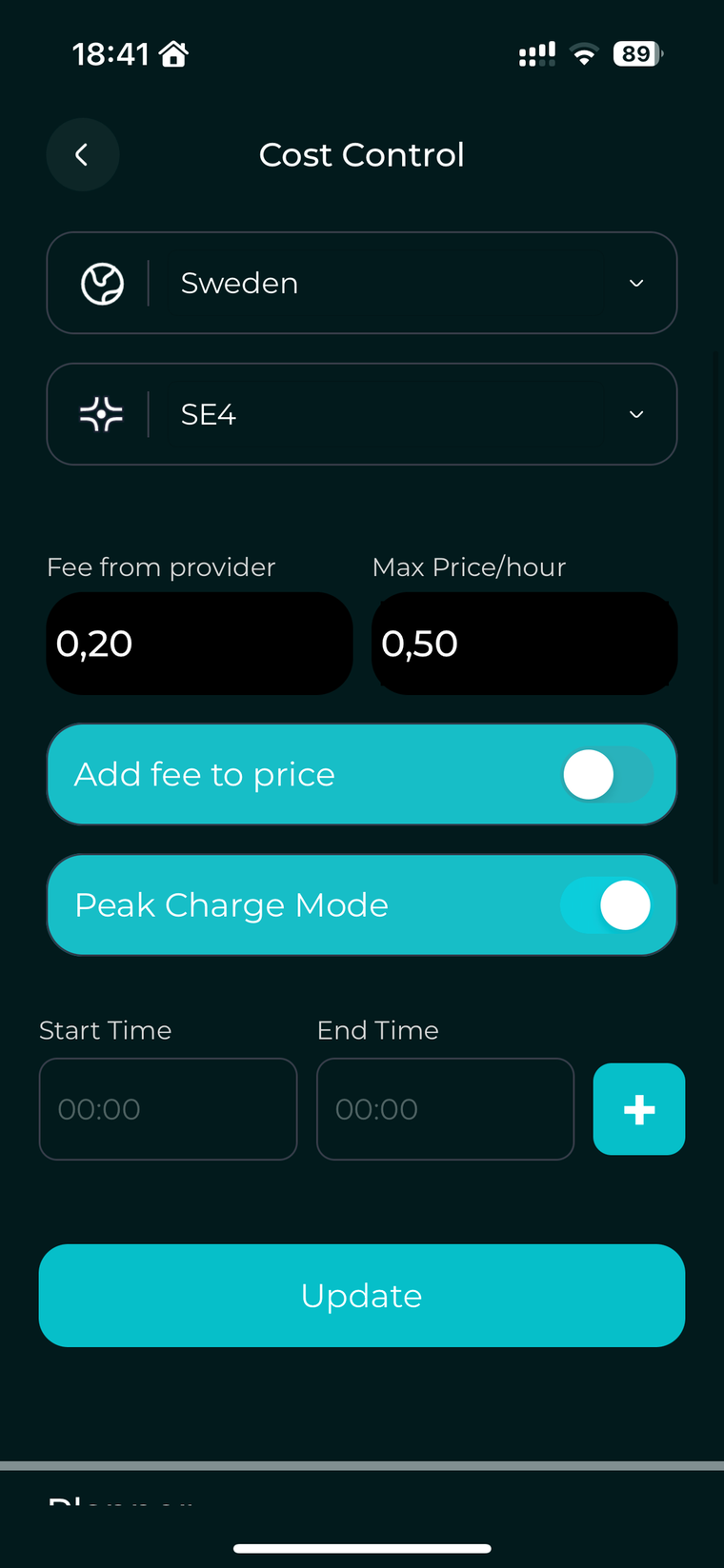
Peak Charge Mode, Power Subscription Protection
How to set it up
- Activate Peak Charge Mode in the Spapilot app.
- Select the hours when your provider measures your peak power, for example weekdays 07:00 to 19:00.
- Spapilot excludes these hours from the heating plan, so the spa does not increase your peak demand.
You can set up to 12 hours per day. Check with your electricity provider exactly which hours are used for peak measurement, so you get the best possible protection and optimize your total cost.
How Planner works
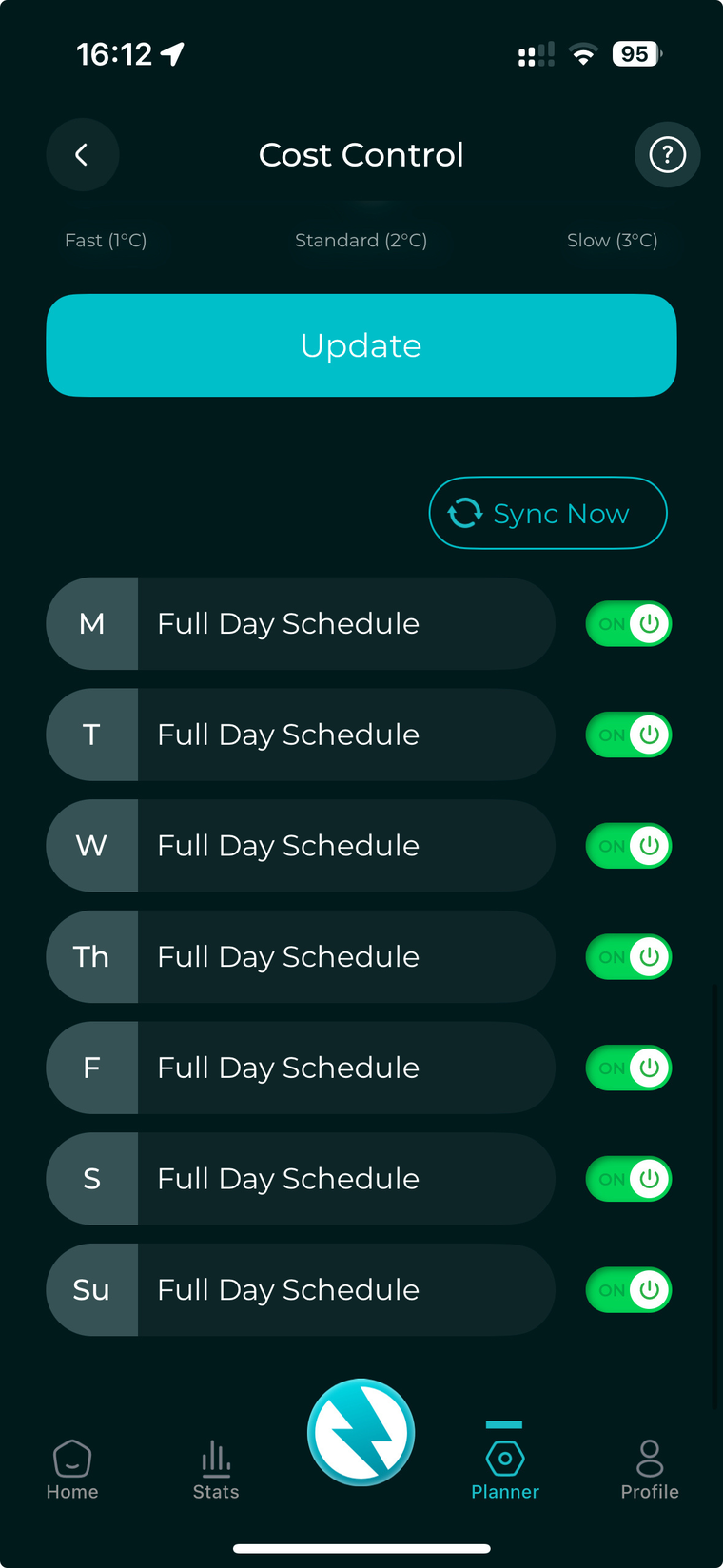
The Planner is at the heart of Spapilot's smart control. You set up a schedule for when and how your spa should be ready, and Spapilot takes care of the rest, day after day. To get the most out of it, understand how it is designed to be used.
The Planner flow
Summary
- Planner is for long-term, recurring actions. Set rules for several days ahead for heating and functions.
- To make a permanent change, go to Cost Control, change the value, and save to update the system. It can sometimes take a moment before Spapilot is ready, so refresh by swiping down.
- Live Control is for spontaneous changes that only apply for the current day and do not change anything in Cost Control. Everything resets at midnight to your Cost Control values.
- Recurring times are the foundation. This is the core idea behind the Planner and lets Spapilot optimize over time.
Planning and consistency give you the best results and save the most energy and money. Spapilot is designed to work smart over time, so let the Planner do the work for you.
Planner vs. Live Control
Think of the Planner as your weekly schedule or calendar, where you decide in advance when and how you want your spa to be ready. Live Control is your remote for the moment, perfect for spontaneous changes right now.
An example to make it clear
In the Planner, you set your spa to always be 37°C every Friday evening. But on a Tuesday, you suddenly feel like a bath and use Live Control to raise the temperature to 39°C. Spapilot listens immediately and starts heating to 39°C, exactly as you want, right now. This change only applies for that Tuesday. The next day, Wednesday, Spapilot forgets your spontaneous change and goes back to your original plan of 37°C on Fridays.
A spontaneous change with Live Control can affect the next planned session in your Planner. For example, if your instant heating means Spapilot cannot reach the planned temperature in time for the next scheduled session, it may need to postpone or skip that session and wait for the next scheduled interval.
The Planner is for planned, recurring spa sessions. It keeps track of your routines and makes sure your spa is ready on your terms, week after week. Live Control with Instant Heating is for spontaneous actions, when you want to change something right away, just for now. Any change you make in Live Control is temporary and only applies for the rest of the day. The next day, Spapilot automatically returns to your planned schedule and settings.
If you want a planned session to go exactly as intended, avoid making big temperature changes with Live Control right before a scheduled session.
Reset Wi-Fi, Spapilot Reset Hotspot
If you need to reset your Spapilot box because it has lost access to your Wi-Fi, you can connect to the secondary reset Wi-Fi. The box has a secondary Wi-Fi hotspot to ensure consistent connectivity.
- Note the reset hotspot credentials The Spapilot box features a secondary Wi-Fi hotspot with the SSID "Spapilot Reset Hotspot" and the password shown above.
- Configure your phone's hotspot to match Go to your phone's settings and configure your mobile hotspot to match these credentials. This is available in your internet sharing settings.
- Reconnect in the app Once configured, your phone connects to the Spapilot box automatically. After the connection is established, you can change the box's credentials as needed, so you can reconnect to Spapilot in the app.
Feature Flows and Requirements
Each Spapilot feature has a clear scope. Here is what every feature does, what it needs, what it measures, and what it does not.
What Spapilot never measures or controls
- Water chemistry (pH, chlorine, ORP)
- Water level
- Number of bathers
- Chemical dosing
- Solar panel integration Coming soon
FAQ
The most common questions about Spapilot, answered.
Thank you from the CEO
Thank you for choosing Spapilot
As the CEO of Zavepower, I would like to extend a heartfelt thank you, on behalf of our entire dedicated team, for choosing Spapilot.
We are proud to be part of your spa experience and hope you will enjoy our solution, both now and in the future.
We are constantly working to develop and improve Spapilot, to make your spa life even easier, smarter, and more sustainable.
Please never hesitate to reach out if you have questions, thoughts, or feedback. We are always here to support you.
Warranty and Support
Everything you need to know about your Spapilot warranty, support, environmental commitment, and certifications.
Warranty terms
Spapilot comes with a standard 24-month warranty. If you purchased the product through an authorized reseller, a 5-year warranty applies. The warranty covers manufacturing defects and operational issues under normal use. To make a warranty claim, contact our support team with your proof of purchase and the product's serial number.
Software warranty
The Spapilot software, including the mobile app and device firmware, is provided "as is" and is covered by a limited warranty. Zavepower guarantees that the software will function as described in the official documentation at the time of delivery. Zavepower is not responsible for issues caused by third-party software, operating system updates, or user modifications. Regular updates are provided to improve performance and security, but uninterrupted or error-free operation cannot be guaranteed.
Support and contact
Need help? Our support team is here for you.
Environment and recycling
At Zavepower, we care about the environment. Spapilot is designed to reduce heating costs by up to 80% and lower CO₂ emissions. When your product reaches end of life, please dispose of it at your nearest electronics recycling facility. Always follow local recycling guidelines.
Safety certificates and approvals
Spapilot is CE marked and RoHS compliant, meeting European safety and environmental standards. For more information about certifications, visit our website or contact our support team.
Contact Directory
How to reach us for support, sales, reseller partnerships, and documentation.
Website: www.zavepower.com
Email: support@zavepower.com
The Spapilot Gen 1 is the inaugural version and is currently in its beta phase. As with any early version, there may be occasional issues that require troubleshooting. Our dedicated support team is committed to assisting you with any concerns or questions. We encourage all users to provide feedback, as your insights are invaluable in helping us refine and enhance the Spapilot experience. Our comprehensive product documentation is readily available online, so you always have access to the latest updates and solutions. Thank you for being part of our journey toward innovation and excellence.
Please note: Zavepower has no commercial partnership with Balboa Water Group or Gecko. Any mention of the Balboa BP series or the Gecko YE-3 and YE-5 is solely to clarify technical compatibility.